Strive August 2026 Updates 🚀
August 2026 Update
Dear Strivers,
As we step into September, here’s a quick recap of what we released in August 2026. We hope everyone had a productive and meaningful month, and to our fellow Malaysians, Selamat Hari Merdeka!
August has been another exciting month at Strive, with new features and enhancements across the platform designed to make your daily workflows smoother, more flexible, and more efficient. From improvements to Flowbuilder and Analytics to enhancements across other key modules, here’s a look at what’s new.
____________________________________________________________________________
Enhancements
1. Multi Trigger for Button & Quick Reply Nodes ✨
What’s New:
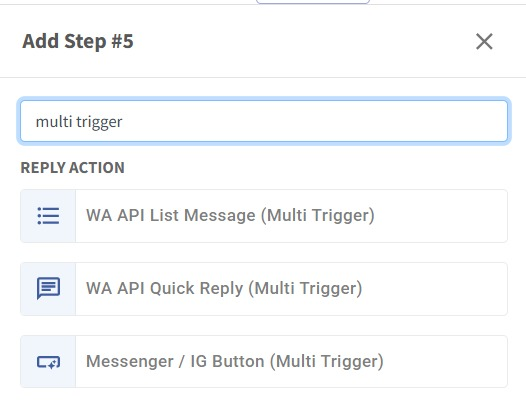
We’ve added new Multi Trigger versions of the following Flowbuilder nodes:
Messenger/IG Button (Multi Trigger)
WA API Quick Reply (Multi Trigger)
WA API List Message (Multi Trigger) 🔄
What it means to you:
Previously, these buttons could only trigger the connected flow path on the first interaction. With the new Multi Trigger versions, contacts can click different buttons multiple times, and each interaction can trigger its corresponding flow path. This gives you more flexibility when building interactive flows. 🚀
How you can go about it:
Go to Flowbuilder Module.
Create a new flow or edit an existing flow.
Add the relevant Multi Trigger node:
Messenger/IG Button (Multi Trigger)
WA API Quick Reply (Multi Trigger)
WA API List Message (Multi Trigger)
Set up your buttons/options and connect each one to the corresponding flow path.
Save and publish your flow. ✅
2. Trigger Flow on Contact Birthday 🎂
What’s New:
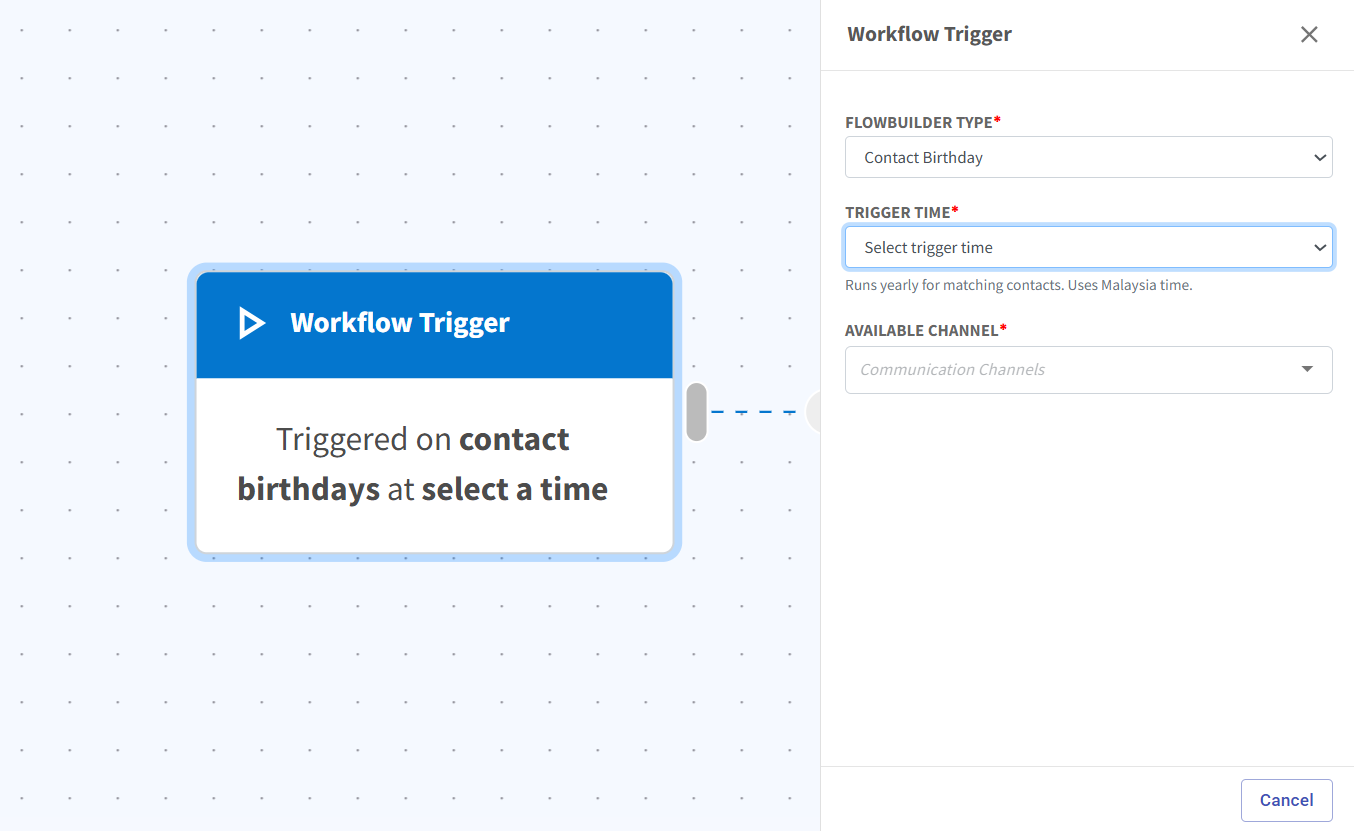
We’ve added a new Contact Birthday trigger in Flowbuilder. You can now automatically trigger a flow based on a contact’s birthday without needing to create an automation, add a tagging, or prepare a segment list beforehand. 🎉
What it means to you:
This makes birthday campaigns much easier to set up. You can manage everything directly within Flowbuilder, reducing extra setup steps and saving time. 🚀
How you can go about it:
Go to Flowbuilder.
Create a new flow or edit an existing flow.
Select Contact Birthday as the Flowbuilder type.
Choose the time you want the flow to trigger, such as 10:00 AM, 10:30 AM, or 11:00 AM.
Complete and enable your flow.
For a more detailed tutorial, refer here:
https://scribehow.com/o/Fs8ozAjrTmmTVSASY4x3XQ/viewer/How_to_Create_a_Birthday_Flow__h2kgALkoSJGD38rjtuWkPA ✨
3. Strive GO Inbox UI & UX Enhancements 📱
What’s New:
We’ve enhanced the UI and UX of the Inbox Module in Strive GO, bringing a cleaner interface and several usability improvements to make managing conversations on mobile smoother and more intuitive. ✨
What it means to you:
The refreshed Inbox experience makes it easier to navigate conversations, access key actions, and manage your chats efficiently while on the go. 🚀
How you can go about it:
Update Strive GO to the latest version.
Head over to the Inbox Module to experience the new improvements.
Watch the video below for a quick walkthrough of the enhanced UI and UX. 🎥
Video Guide:
https://www.loom.com/share/1e45ae3fcfc24d07a74e843acc4b560b
4. 👥 Connect Strive MCP for Your Whole Team
What's New:
You can now connect Strive MCP in Team Mode, allowing other users in the same workspace to access and connect to Strive through their own accounts. 🔗
What it means to you:
Admin can add Strive MCP at the workspace level, and each sub-user can then find and connect to Strive individually from their Connectors. This makes Strive MCP easier to manage and accessible across the whole team. 🚀
How you can go about it:
The Admin adds Strive MCP to the workspace.
The sub-user goes to Connectors.
Find Strive from the available connectors.
Click Connect and complete the authentication using the respective Strive MCP credentials. ✅
For a detailed step-by-step guide, refer to:
5. 🔒 Control Inbox Access with Privacy Mode
What's New:
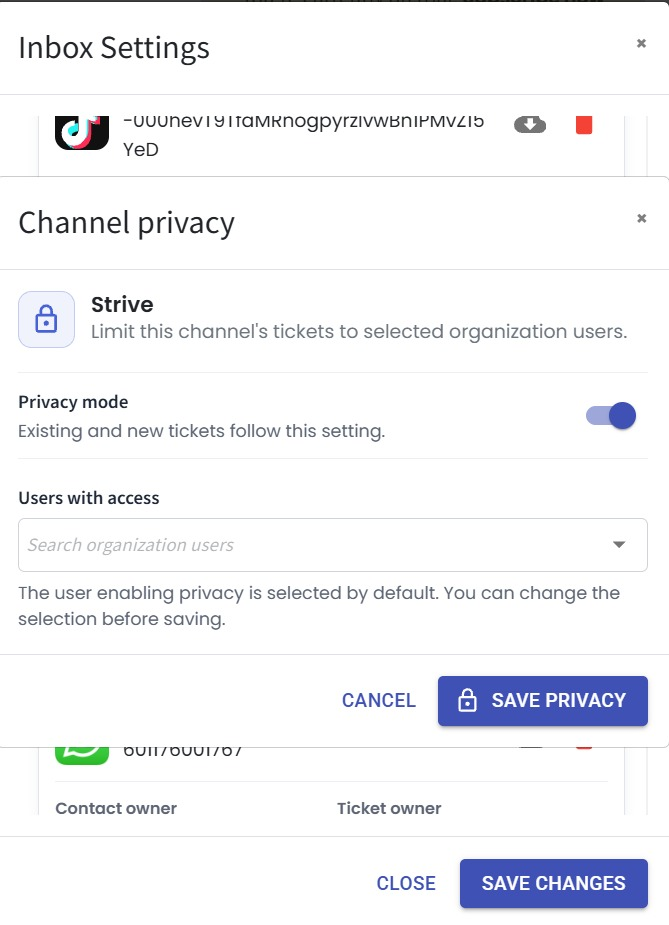
You can now enable Privacy Mode for individual channels in the Inbox. Once enabled, only selected users will be able to view tickets from that channel, giving you greater control over who can access sensitive conversations. 🔐
What it means to you:
Privacy Mode helps you restrict access to specific channels, ensuring that only authorised users can view their tickets. This is especially useful for managing confidential conversations, team-specific channels, or limiting visibility based on roles. 👥
How you can go about it:
Go to Inbox Module.
Click Inbox Settings.
Enable the Privacy Mode toggle for your desired channel.
Select the users who should have access to that channel's tickets.
Click Save Privacy to apply the changes. ✅
6. 🕘 Track and Restore Previous Flow Versions
What's New:
You can now track previous versions of your Flows and restore an earlier version whenever needed. This gives you better control over changes made in Flowbuilder. 🔄
What it means to you:
You can easily review past versions and reinstate a previous version if something was changed by mistake or if you prefer an earlier setup. This makes it safer to update and experiment with your Flows without worrying about losing previous configurations. 👍
How you can go about it:
Go to Flowbuilder Module.
Edit the Flow you want to manage.
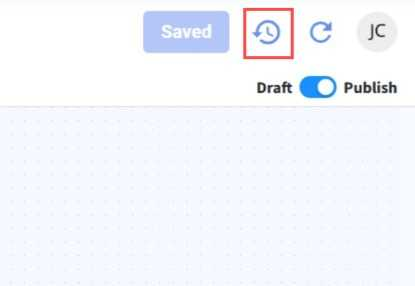
Click the Flow Version History icon at the top right.
Review and track previous versions of the Flow.
Select the version you want and restore it. ✅
7. 🤖 AI Agents Can Now Log CAPI Events
What's New:
You can now configure your AI Agent to automatically log CAPI events using the new Log CAPI Event tool. 🎉
What it means to you:
Track purchases and other conversion events made through your AI Agent more accurately. This helps keep your CAPI data complete for reporting and ad optimization. 📊
How you can go about it:
Go to the Agent Module and open your AI Agent.
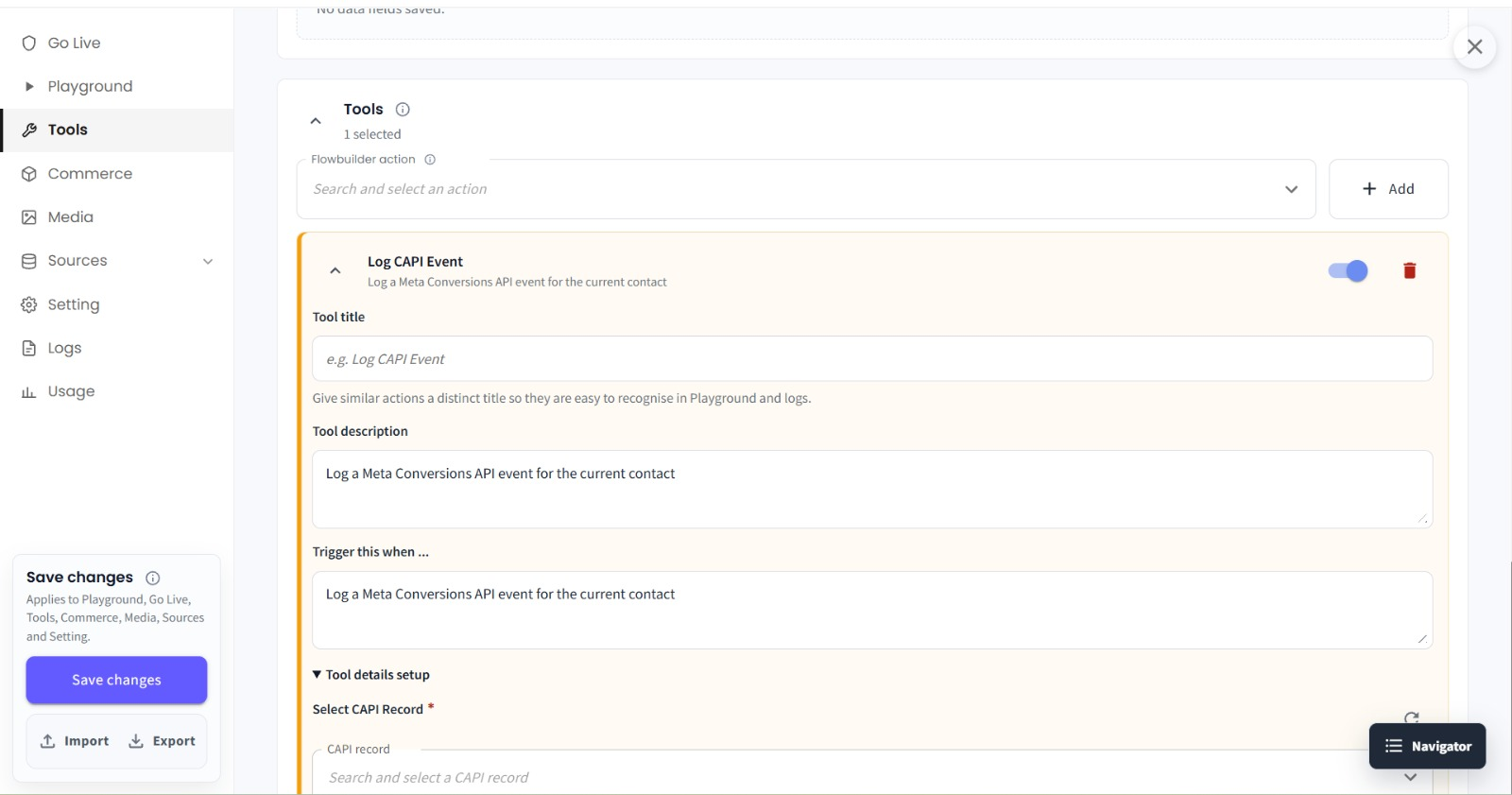
Click the Tools tab.
Under the Tools section, select Log CAPI Event.
Fill in the required tool details, such as the Tool Title and when the tool should be triggered.
After completing the tool details, click Save Changes in the bottom-left corner. 💾
8. Automatically Turn Off Flows at a Scheduled Time ⏰
What's New:
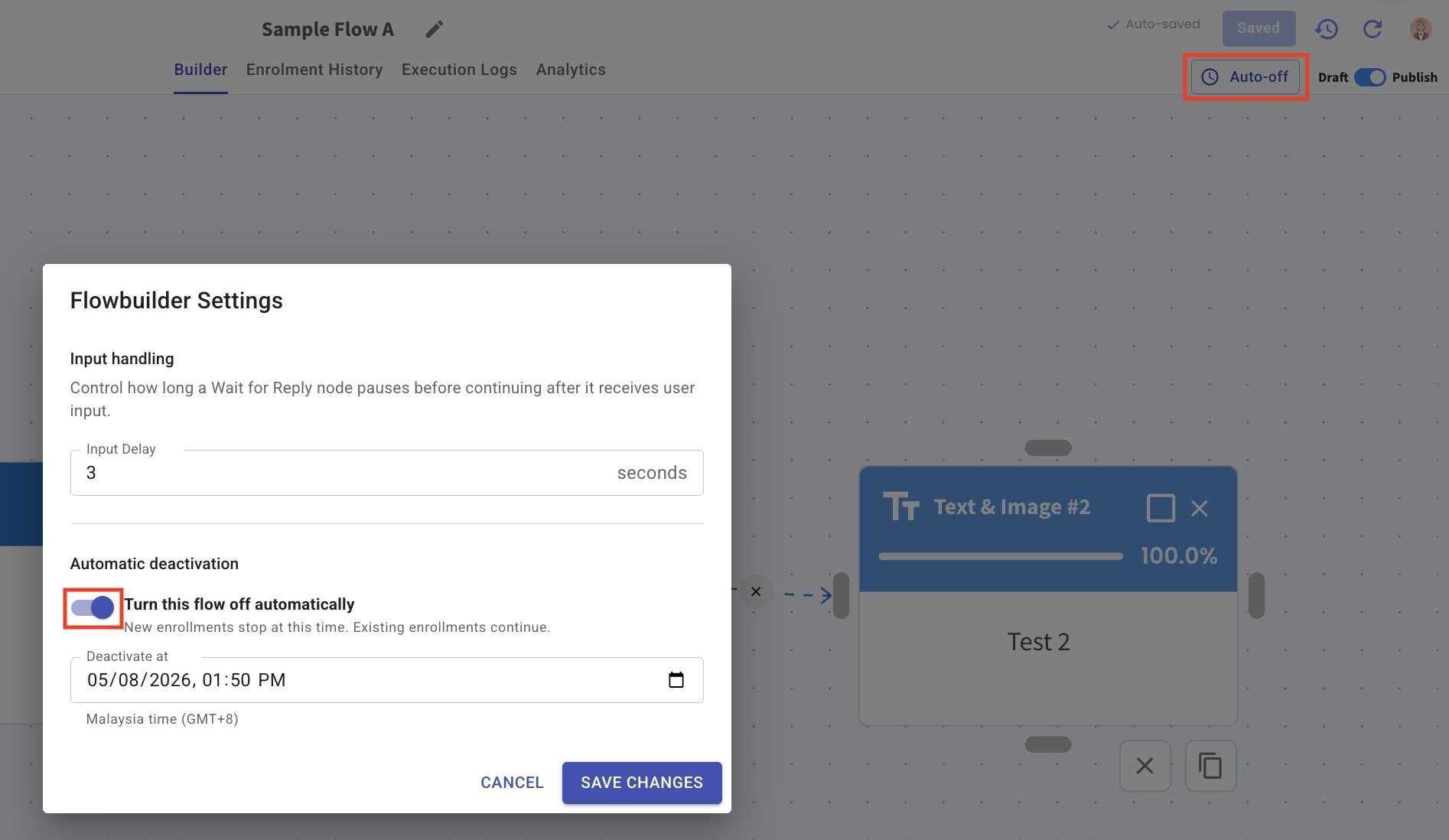
You can now set an Auto-off date and time for your flow.
Once the scheduled time is reached, the flow will automatically turn off and stop accepting new enrolments, while existing enrolments can continue. 🕒
What it means to you:
This is especially useful for promotions, campaigns, or time-sensitive activities that only run for a specific period.
You no longer need to remember to manually turn off the flow once your campaign ends. 🎯
How you can go about it:
Go to Flowbuilder and edit your enabled flow.
Click Auto-off at the top right.
Enable Turn this flow off automatically.
Select your desired date and time.
Click Save Changes. 🚀
9. 📥 Import FB/IG Contacts into Strive
What's New:
You can now import Facebook and Instagram contact into Strive. 🎉
What it means to you:
You can now include FB/IG contact information when importing contacts, allowing Strive to properly recognize and store your social media contacts. This makes it easier to manage and engage with your FB/IG contacts. 🔗
How you can go about it:
Go to the Contact Module.
Click the blue icon on the top right and select Download Template.
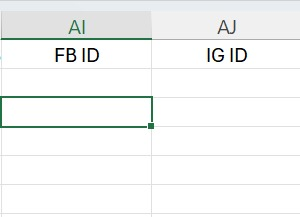
Fill in the contact details in the file, including the contact's FB ID or IG ID.
Import the completed file into Strive. ✅
10. Filter Flow Analytics by Date, Version & Channel ✨
What’s New:
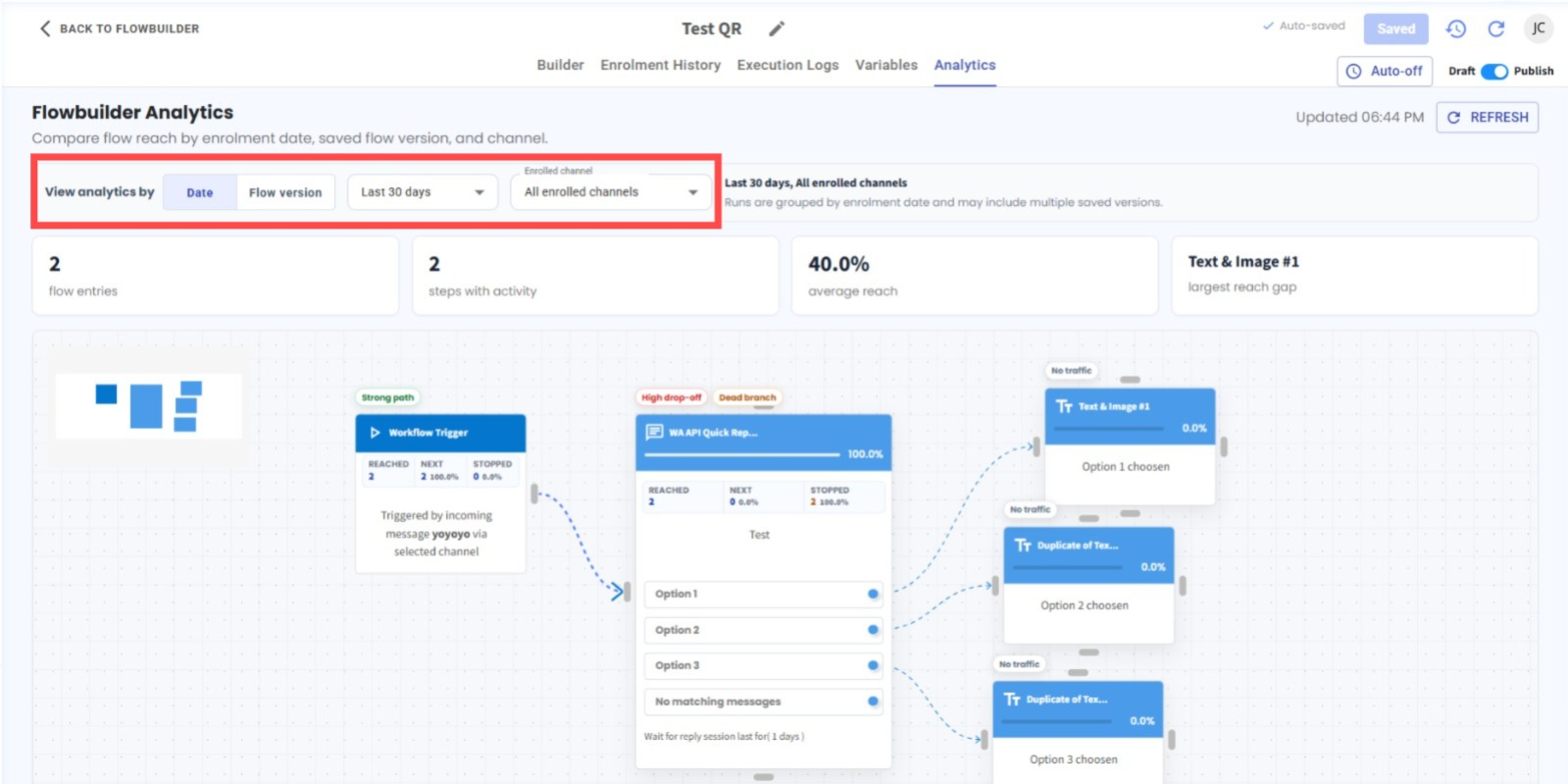
We’ve enhanced Flow Analytics with more filtering options. You can now view and compare your flow performance by Date or Flow Version, together with a Channel filter. 📊
What it means to you:
Get a clearer view of how your flow is performing across different periods, saved flow versions, and enrolled channels. This makes it easier to analyse results and identify performance differences. 🔍
How you can go about it:
Go to Flowbuilder Module.
Edit the flow you want to analyse.
Click Analytics at the top.
Choose to view analytics by either Date or Flow Version.
Select the Channel you want to filter by.
Review the filtered Flow Analytics results. ✅
11. Send Messenger Opt-In Request in Flowbuilder 📩
What's New:
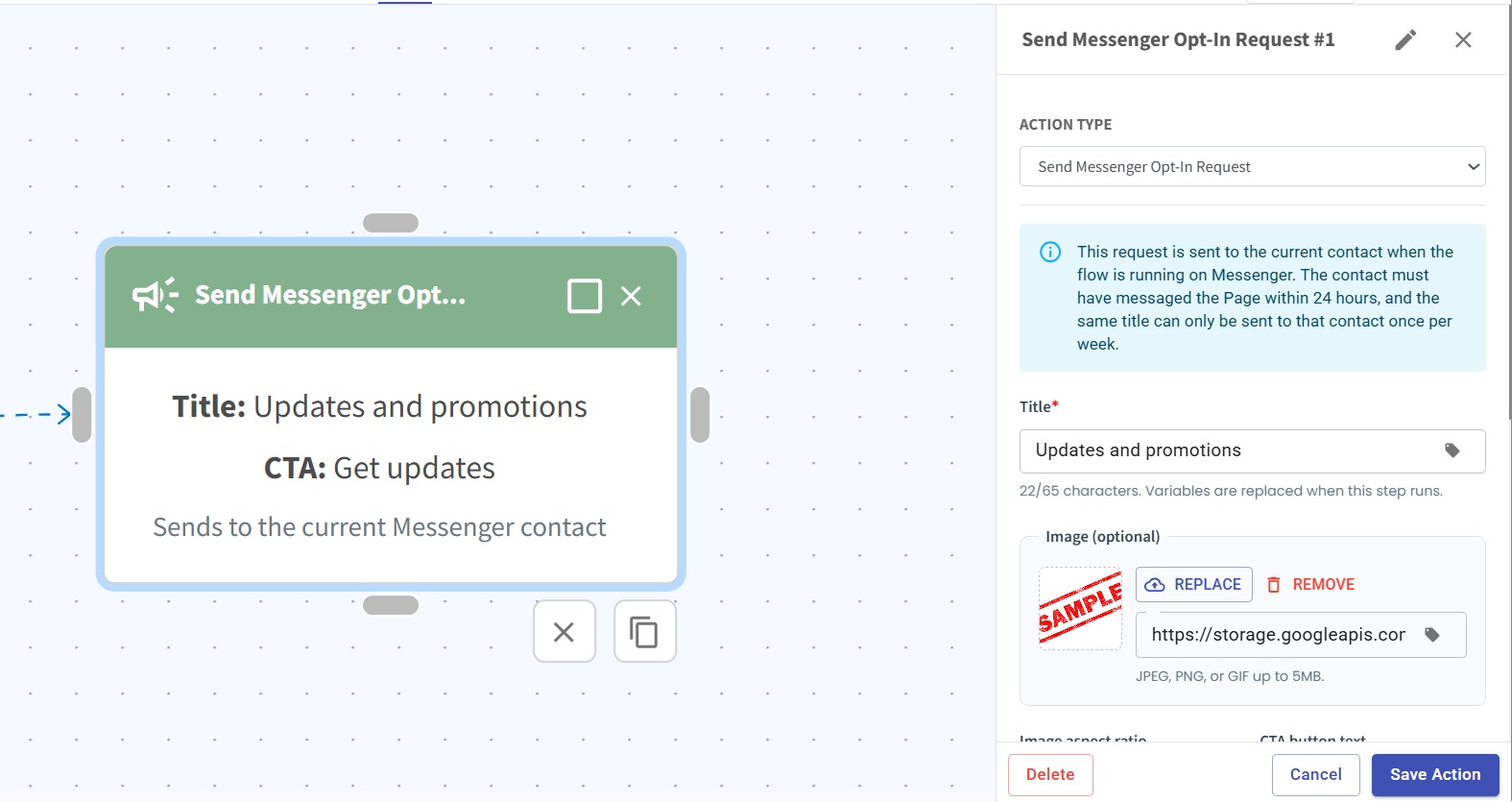
We’ve added a new Send Messenger Opt-In Request action to Flowbuilder. You can now send a Messenger Marketing Messages opt-in request directly as part of your flow. 📩
What it means to you:
You can now include Messenger opt-in requests naturally within your automation journey, giving you more flexibility over when and where the request is sent without having to handle it separately. ⚡
How you can go about it:
Go to the Flowbuilder module and create or edit a flow.
Add an Action node and select Send Messenger Opt-In Request as the Action Type.
Set up the opt-in request details, such as the Title, Image, and CTA button text.
Click Save Action and continue building your flow as usual. 🚀
12. Refresh Facebook & Instagram Permissions 🔄
What's New:
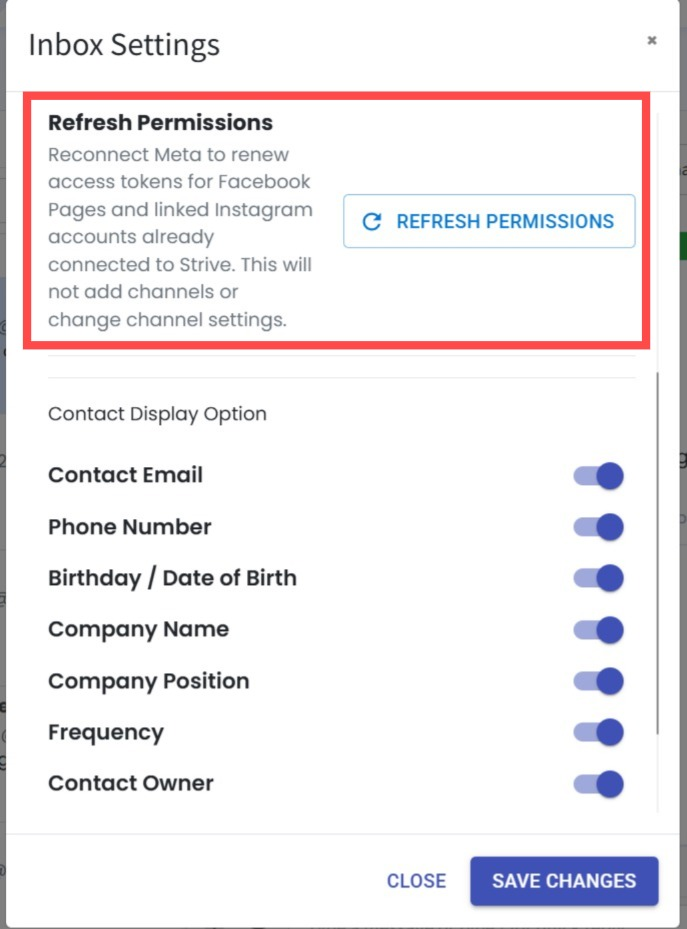
We’ve added a new Refresh Permissions button under Inbox > Inbox Settings for your connected Facebook Pages and Instagram accounts. 🔄
What it means to you:
If your Facebook or Instagram connection encounters a permission issue, you can now refresh the permissions directly without removing or reconnecting your existing channels. ✨
How you can go about it:
Go to Inbox > Inbox Settings and scroll down to find Refresh Permissions.
Click Refresh Permissions and follow the authorization steps to refresh access for your connected Facebook Pages and Instagram accounts. 🚀
13. Recent Triggered Flows in Strive GO ✨
What’s New:
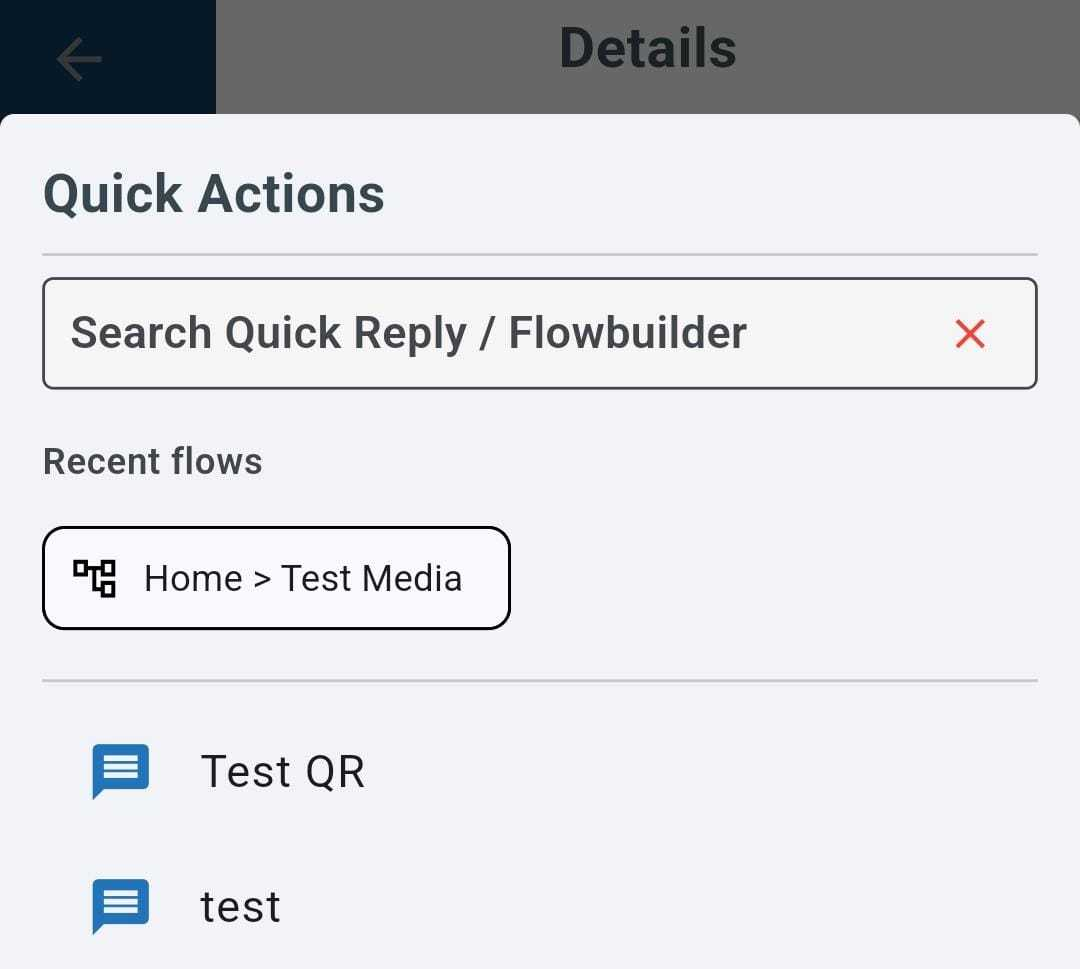
We’ve added a Recent Triggered Flows option in Strive GO. After you trigger a flow, it will appear under your recent flows the next time you want to trigger a flow. 📱
What it means to you:
You can quickly access flows that you’ve recently used without having to search for them again, making flow triggering more convenient and time-saving. ⚡
How you can go about it:
Make sure Strive GO is updated to the latest version.
Go to Inbox and tap the gear icon at the top right.
Scroll to the bottom and find Show Recent Triggered Flows.
Turn the option on or off based on your preference.
Once enabled, your recently triggered flows will appear under Recent Flows when you trigger a flow. ✅
14. 🔄 Customize How New Messages Behave in Inbox
What's New :
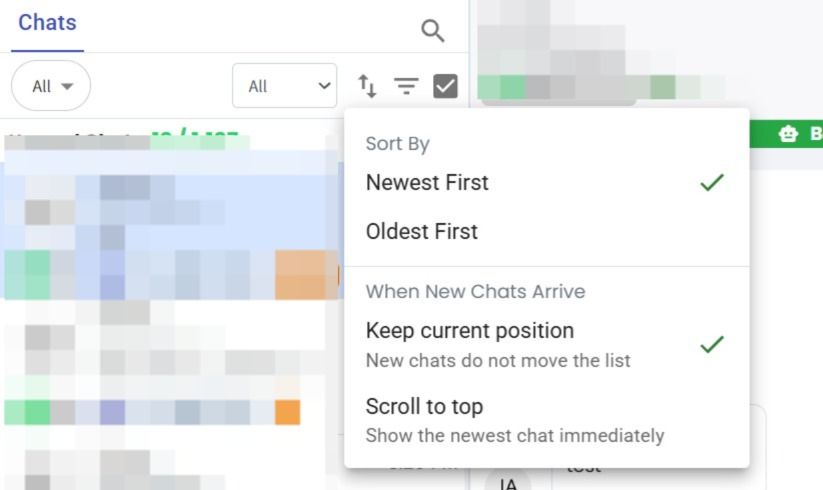
You can now choose how your Inbox Chat List behaves when new messages arrive. ✨
Select either:
Keep Current Position – New chats do not move the list.
Scroll to Top – Show the newest chat immediately.
What it means to you :
You now have more control over your Inbox experience based on how you work.
If you're reviewing older conversations, you can keep your current position without interruptions. If you prefer to always see the latest incoming messages, you can enable automatic scrolling to the top so new conversations are immediately visible. 🚀
How you can go about it :
Go to Inbox.
Open the Chat Sorting options.
Choose either Keep Current Position or Scroll to Top based on your preference.✅
15. Able to Download Voice Notes in Strive 🎙️
What’s New:
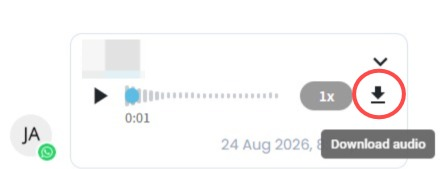
You can now download voice notes directly from Strive Inbox, making it easier to save and keep important audio messages when needed. 🎧
What it means to you:
No more relying on external methods to keep a copy of your customers’ voice notes. You can now download them directly from the conversation for easier reference and record keeping. 📥
How you can go about it:
Open a chat in Inbox.
Find the voice message and click Download.
The voice note will be downloaded directly to your device.
You can then access the downloaded voice note from your device anytime. ✅
16. Segment by Last Touchpoint 🔍
What's New:
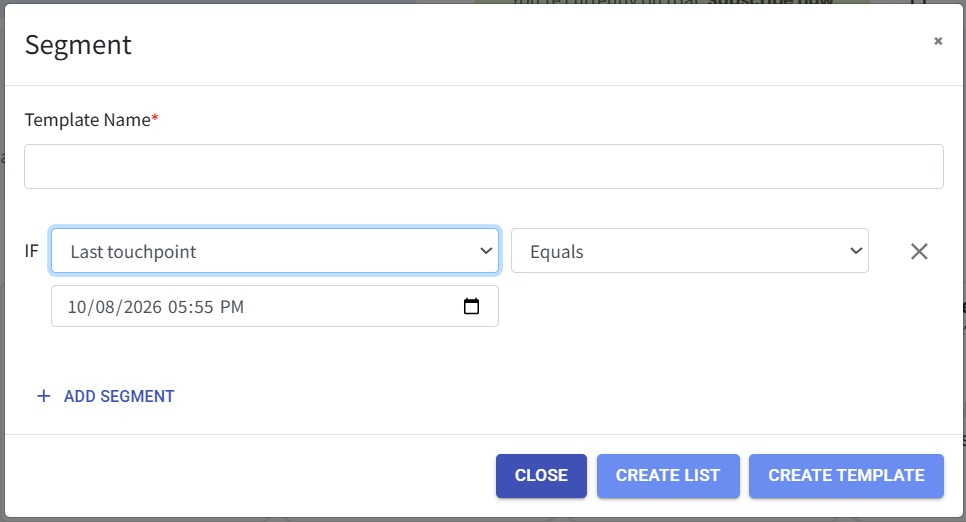
You can now segment contacts based on their Last Touchpoint date.
Last Touchpoint refers to the most recent recorded customer interaction in Touchpoint, allowing you to filter contacts based on when their latest interaction took place. 📆
What it means to you:
This makes it easier to identify customers based on when you last interacted with them.
For example, you can segment customers whose last touchpoint was before or after a specific date, helping you identify inactive customers for follow-ups, re-engagement, or retention campaigns. 🎯
How you can go about it:
Go to the Contact Module and click on Segment.
Select Last Touchpoint as the segment condition.
Choose the desired date for the last touchpoint filter.
Click Create List or Create Template to save your segment. 🎯
17. 📱 Test AI Agent with Channel & Phone Number
✨ What's New
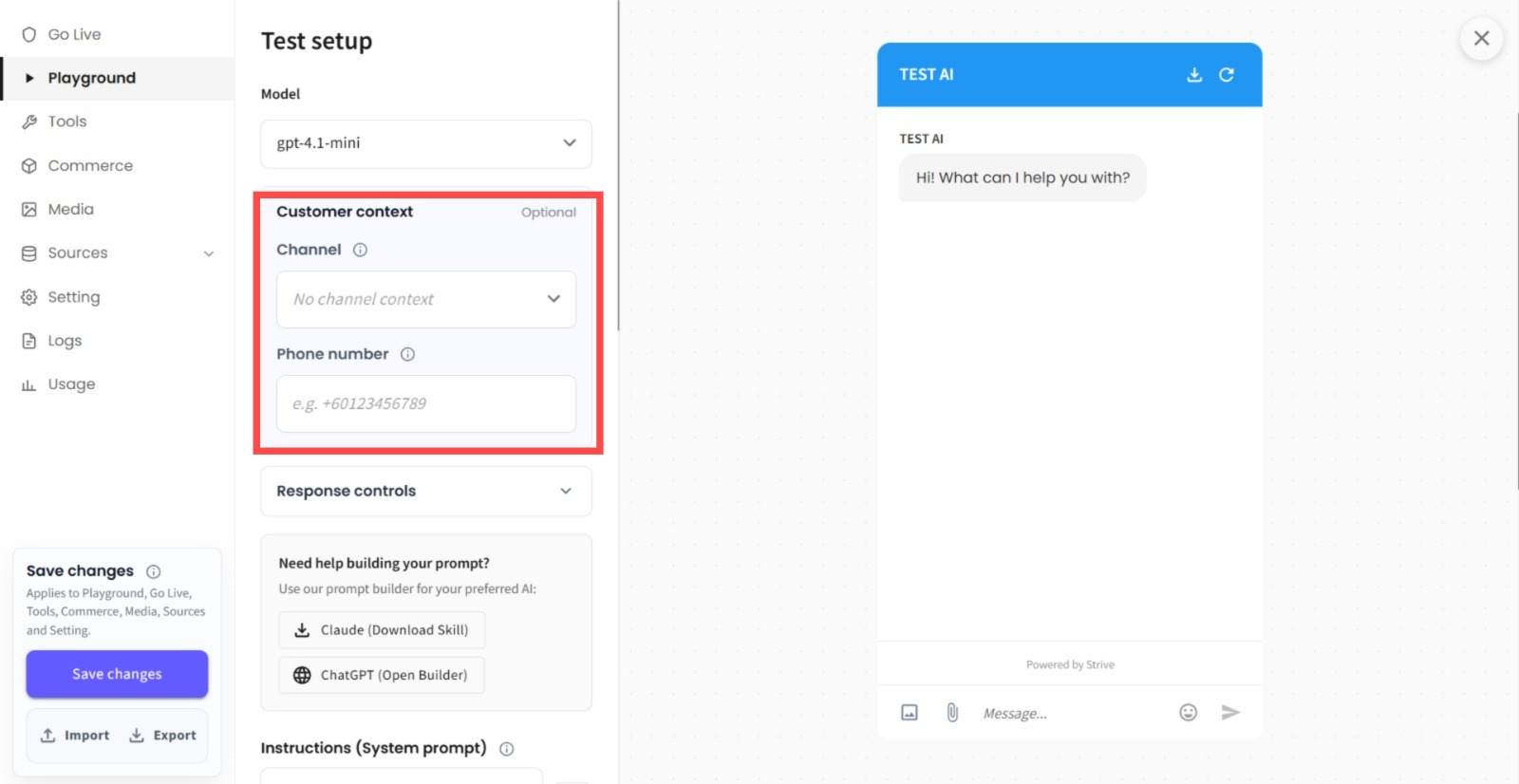
You can now select a Channel and enter a Phone Number when testing your AI in the Playground.
💡 What it means to you
You can now simulate conversations more accurately based on the Channel and Phone Number used by your customers. This makes it easier to validate channel-specific AI behaviour and ensure your responses work as expected before going live. 🚀
🚀 How you can go about it
Go to Agent Module.
Select the Agent you want to test.
Choose your Channel and enter a Phone Number (optional).
Start testing your AI in the Playground.
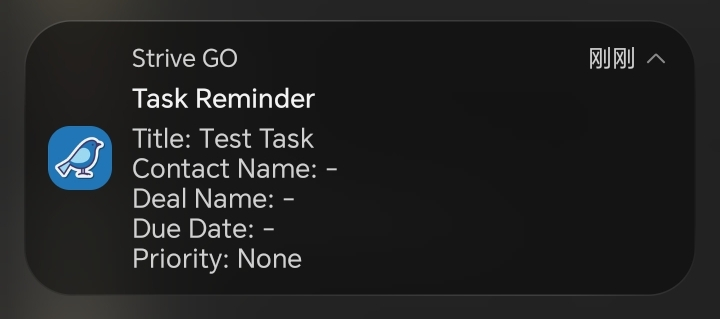
18. 🔔 Receive Task Reminder Notifications via Strive Go
What's New:
Task reminders can now send push notifications through the Strive Go app when the reminder date and time are reached. 🎉
What it means to you:
Stay updated on your tasks without needing to constantly check the platform. You will receive timely reminders through Strive Go, helping you keep track of your follow-ups and important activities. 📱
How you can go about it:
Create a task from Home > Task, KPI Pipeline, or Task Manager.
Set a reminder date and time for the task.
When the reminder time is reached, you will receive a notification through the Strive Go app. 🔔
19. 🔗 Auto Link Inbox Ticket to Contact
What's New:
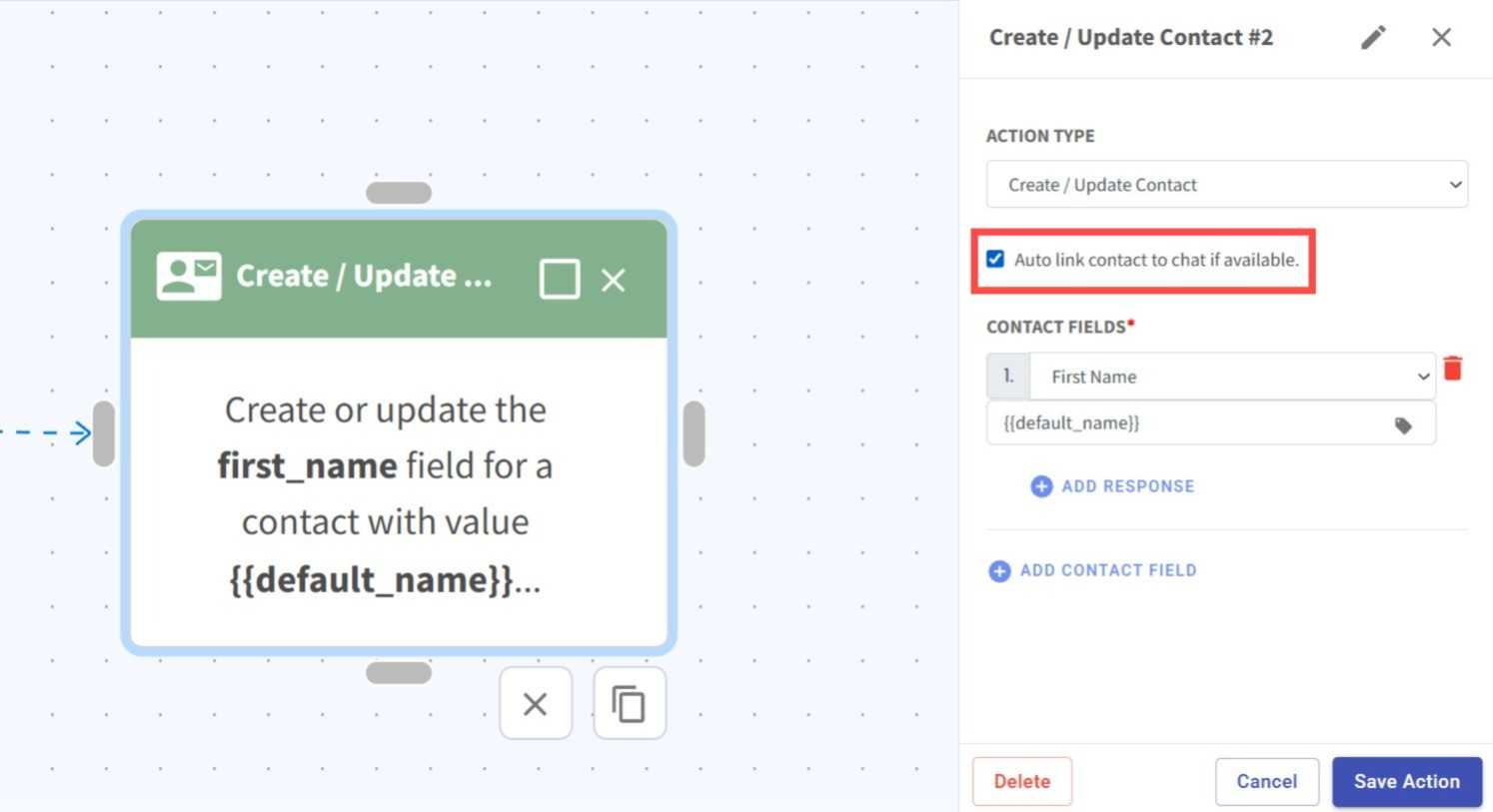
We added a new Auto Link Contact option in the Create/Update Contact action in Flowbuilder. 🎉
What it means to you:
Previously, the action only created or updated contact details. With Auto Link Contact enabled, the inbox ticket will now be automatically linked to the contact while creating or updating the contact, making it easier to keep conversations and contact records connected. 🔄
How you can go about it:
Go to the Flowbuilder Module and add or edit a flow.
Add or edit the Create/Update Contact action.
Enable the Auto Link Contact option.
Configure the remaining action details and save your changes. ✅
20. Segment by Last Touchpoint 🔍
What's New:
You can now segment contacts based on their Last Touchpoint date.
Last Touchpoint refers to the most recent recorded customer interaction in Touchpoint, allowing you to filter contacts based on when their latest interaction took place. 📆
What it means to you:
This makes it easier to identify customers based on when you last interacted with them.
For example, you can segment customers whose last touchpoint was before or after a specific date, helping you identify inactive customers for follow-ups, re-engagement, or retention campaigns. 🎯
How you can go about it:
Go to the Contact Module and click on Segment.
Select Last Touchpoint as the segment condition.
Choose the desired date for the last touchpoint filter.
Click Create List or Create Template to save your segment. 🎯
21. 💰 Easily Track Estimated WABA Spend for WA API Broadcast
What's New:
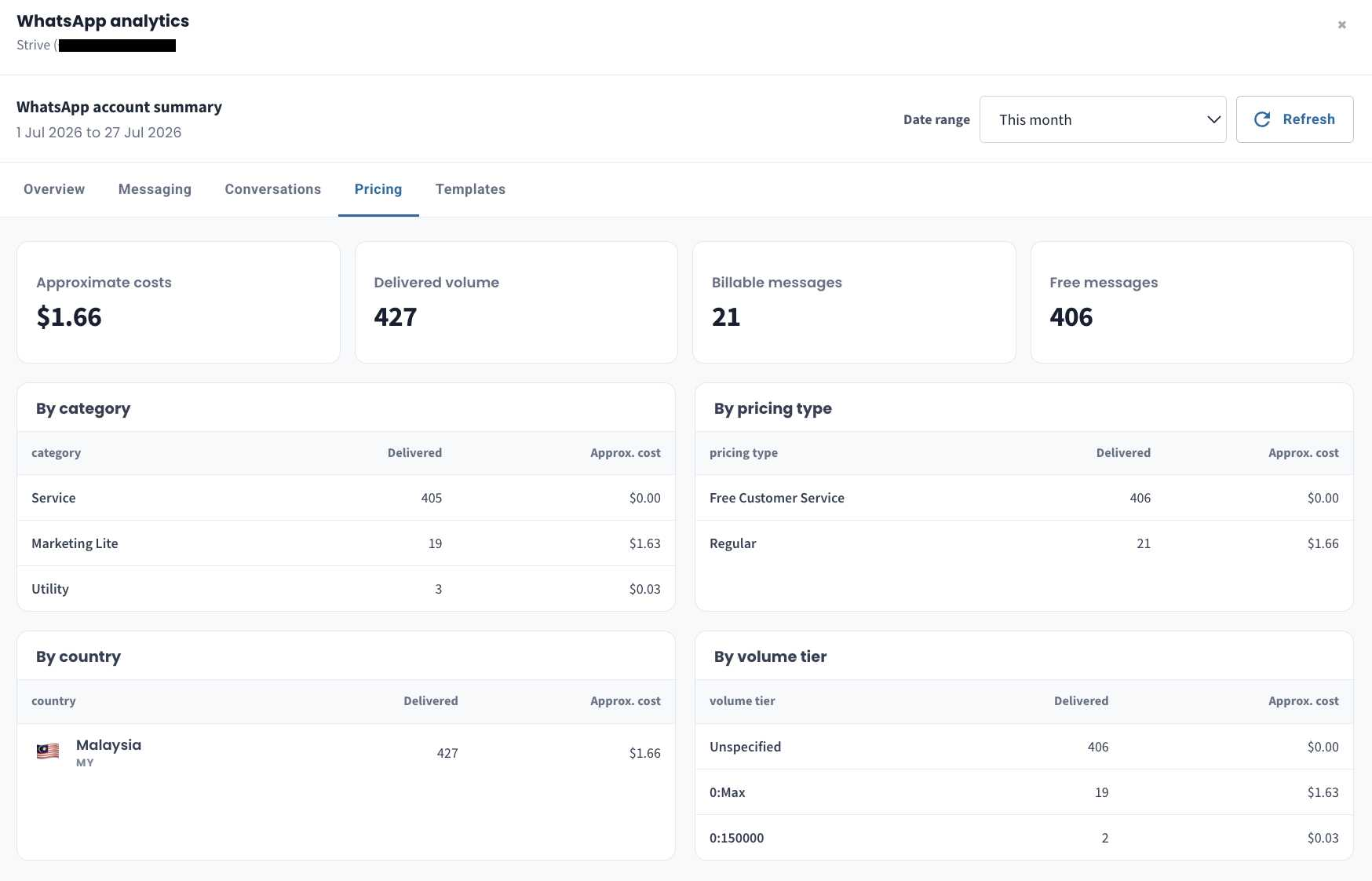
We have added an estimated cost summary for WA API Broadcast. 🎉
What it means to you:
Previously, users needed to download multiple WABA bills from Meta and manually combine the information to understand their spending. Now, you can quickly view the estimated broadcast cost breakdown directly in Strive, saving time and making it easier to monitor your WABA spend. 📊
How you can go about it:
Go to the WA API Broadcast module.
Click View Details under Billable Messages at the top.
View the estimated cost breakdown by category and other related information. 💰
Note : The displayed cost is an estimated amount to help you understand the expected spend. The finalized cost may vary and should be referred to from Meta's billing records.
22. Clearer WA API Broadcast Recipient Summary 📊
What's New:
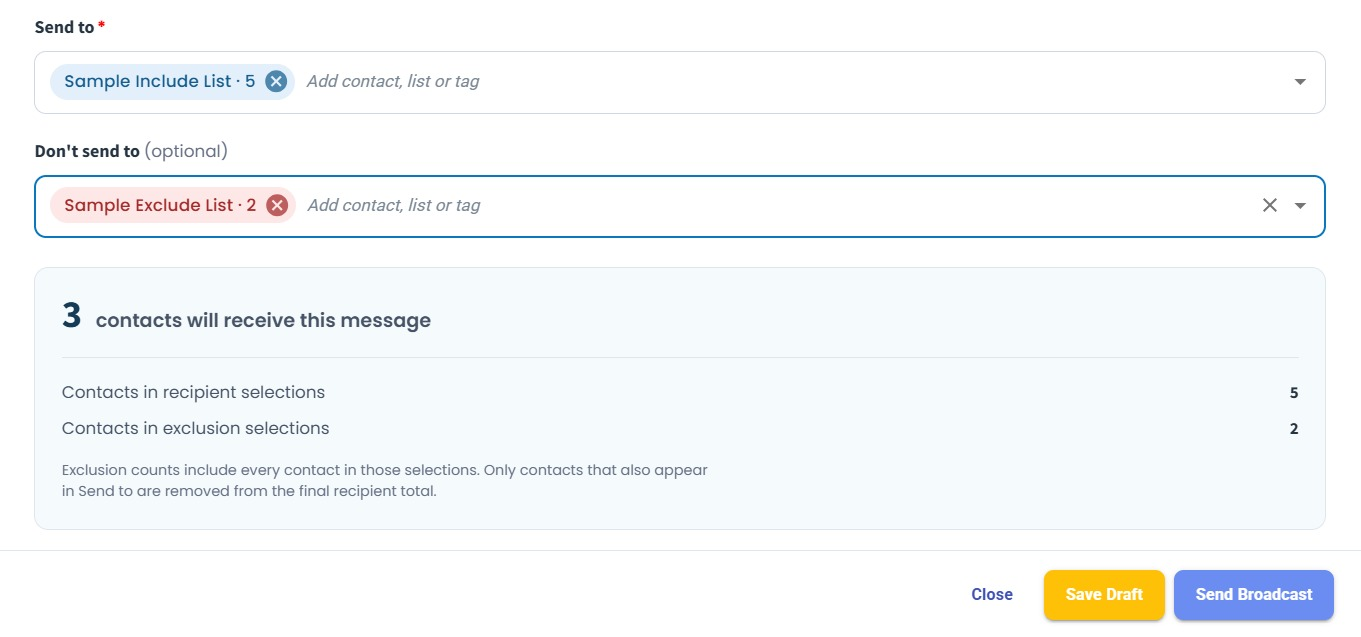
We’ve enhanced the WA API Broadcast Recipient interface to give you a clearer overview of your selected recipients. You can now see the number of contacts in each selected list directly when setting up your broadcast. 👀
What it means to you:
You can now easily see how many contacts are included, how many are excluded, and the final number of recipients who will receive your broadcast. This helps you verify your actual broadcast audience at a glance before sending. 🎯
How you can go about it:
Go to the WA API Broadcast module.
Fill in and select all the required options for your broadcast.
Check the Recipient section to see the included count, excluded count, and the final number of recipients who will receive your broadcast. 🚀
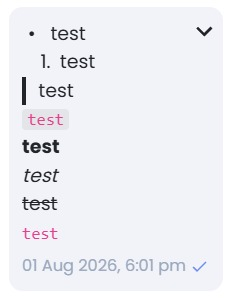
23. ✨ View WhatsApp Text Formatting in Strive Inbox
What's New:
You can now use and view supported WhatsApp text formatting, such as bold and italic, directly in the Strive Inbox. 💬
What it means to you:
Previously, WhatsApp text formatting was not displayed properly in Strive. With this enhancement, formatted messages now appear more accurately, making conversations clearer and easier to read. 👀
How you can go about it:
Go to Inbox.
Click on a chat.
Enter your message using supported WhatsApp text formatting.
Send the message and view the formatting directly in the conversation.
No setup is required. ✅
___________________________________________________________________________
That wraps up our August 2026 update. As we celebrate the spirit of Merdeka, we’d also like to take this opportunity to thank all our Strivers for your continued support and trust in us.
We’ll continue listening to your feedback and improving Strive to make your everyday experience even better. Stay tuned for more exciting updates coming your way in September! 🙂