Strive October 2026 Updates 🚀
October 2026 Update
Dear Strivers,
As we step into November, here’s a recap of the enhancements we released in October 2026. This month’s updates bring more language options, easier broadcast and flow management, and more control over your Inbox and Touchpoints. Read on to explore what’s new.
____________________________________________________________________________
Enhancements
1. Strive Now Supports Three Languages 🌏
What's New:
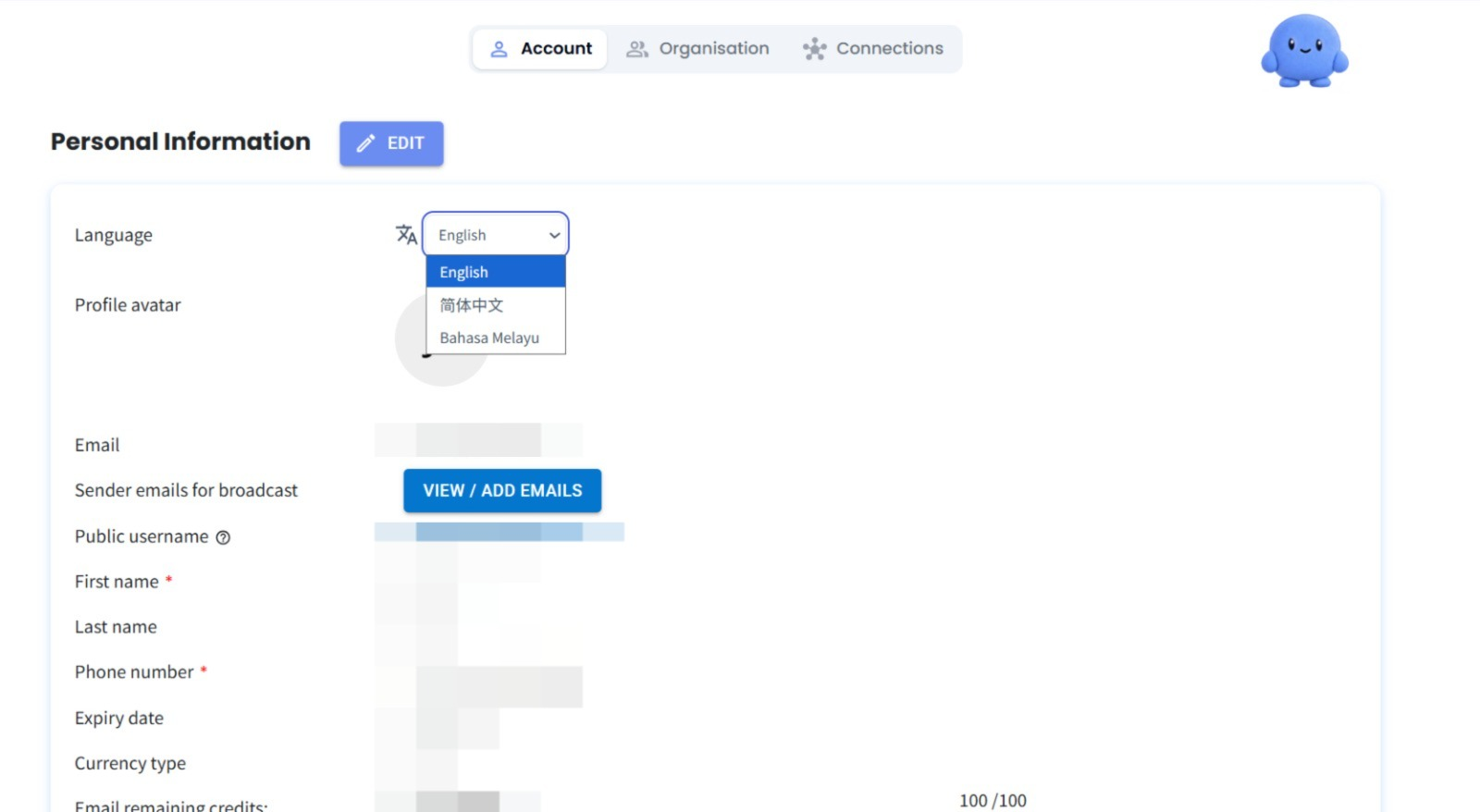
Strive now supports three languages: English, Simplified Chinese, and Bahasa Melayu. 🎉
What it means to you:
You can now choose your preferred language when using Strive, making the platform more accessible and convenient for users who prefer English, Chinese, or Bahasa Melayu. ✨
How you can go about it:
Go to Account Settings.
Under Personal Information, find the Language dropdown menu.
Select your preferred language: English, 简体中文, or Bahasa Melayu. 🚀
2. New Recipient Options in WA API Broadcast
What's New:
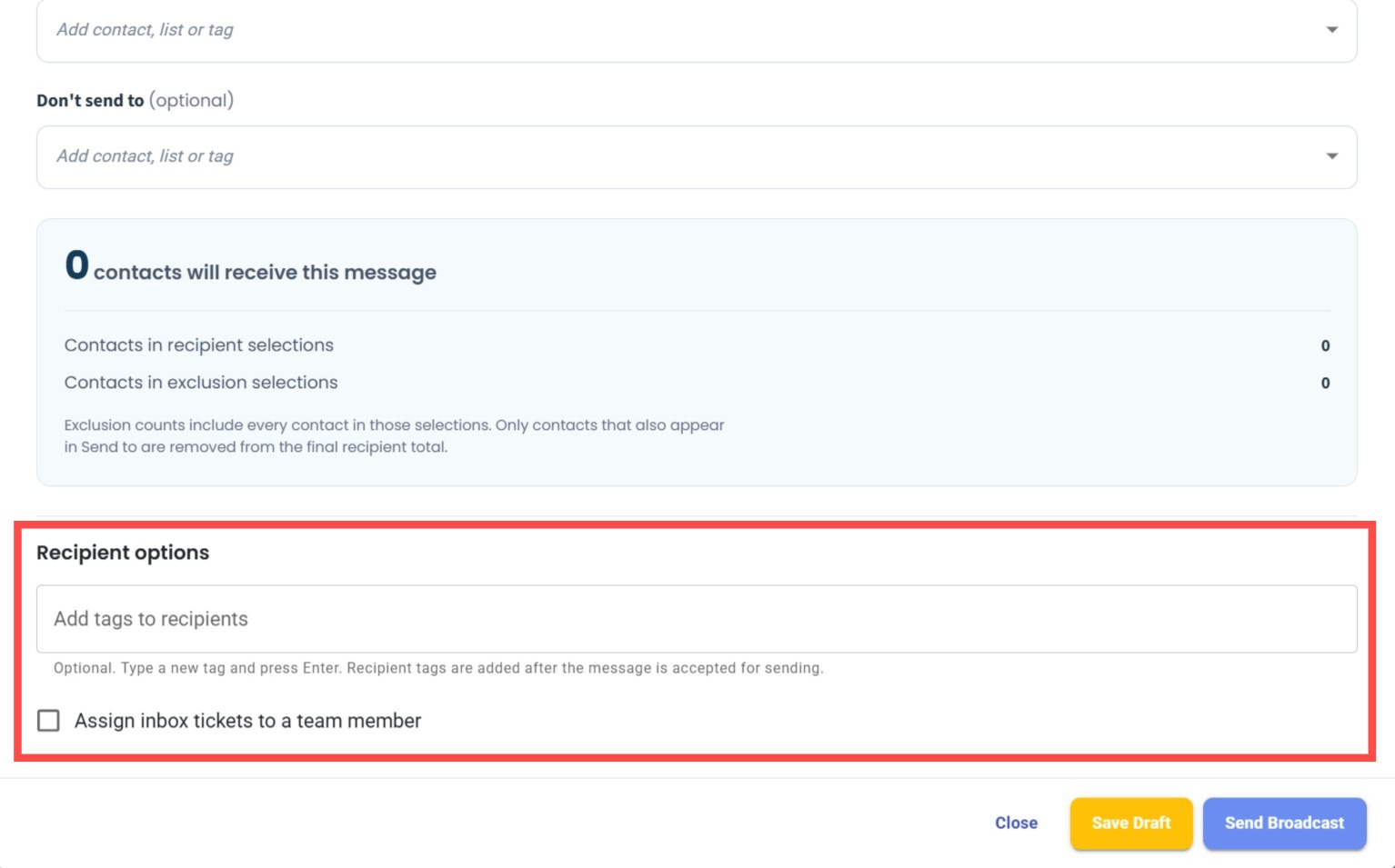
We've added two new recipient options to WA API Broadcast: Add Tags to Recipients and Assign Inbox Tickets to a Team Member. 🎉
What it means to you:
You can now automatically add tags to recipients after the broadcast message is accepted for sending and assign Inbox tickets to a team member directly through the broadcast settings. This makes it easier to organise contacts and manage customer conversations without additional manual steps. 🚀
How you can go about it:
Go to the WA API Broadcast module and create or edit a broadcast.
Configure your recipients under the recipient selection section.
Under Recipient options, you can:
Enter a tag under Add tags to recipients and press Enter to add it.
Tick Assign inbox tickets to a team member to enable ticket assignment.
Complete your broadcast settings and send the broadcast. ✨
3. Unified Trigger Modes for Flowbuilder Nodes
What's New:
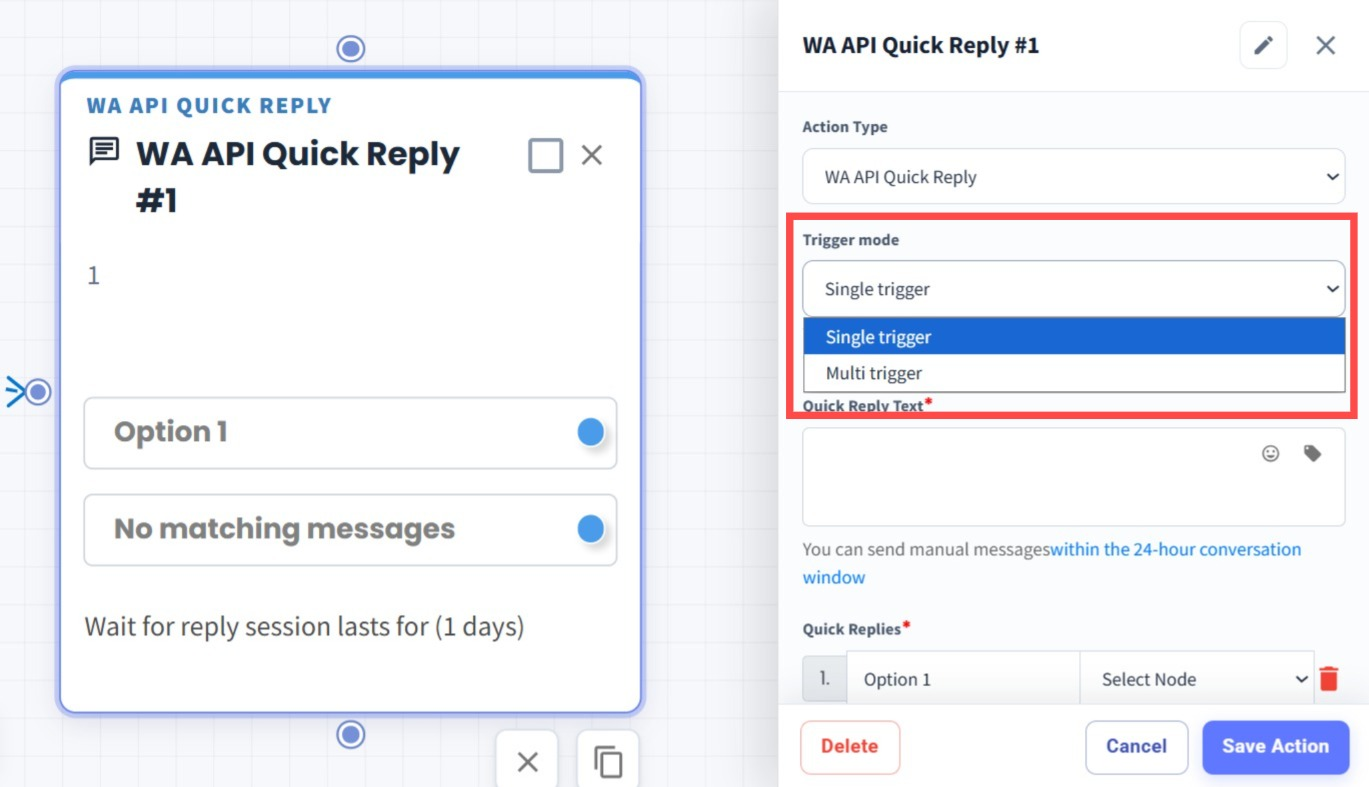
We've combined the Single Trigger and Multi Trigger versions into one node for the following Flowbuilder actions:
WA API Quick Reply
WA API List Message
Messenger/IG Button
You can now select the desired trigger mode directly within each node. 🎉
What it means to you:
No more confusion from having separate nodes for Single Trigger and Multi Trigger. By combining both versions into one node, Flowbuilder is now simpler and more organised, making it easier to configure your automated messaging flows. 🚀
How you can go about it:
Go to the Flowbuilder module and create or edit a flow.
Add a WA API Quick Reply, WA API List Message, or Messenger/IG Button node.
Select your preferred trigger mode: Single Trigger or Multi Trigger.
Configure the remaining settings and save your flow. ✨
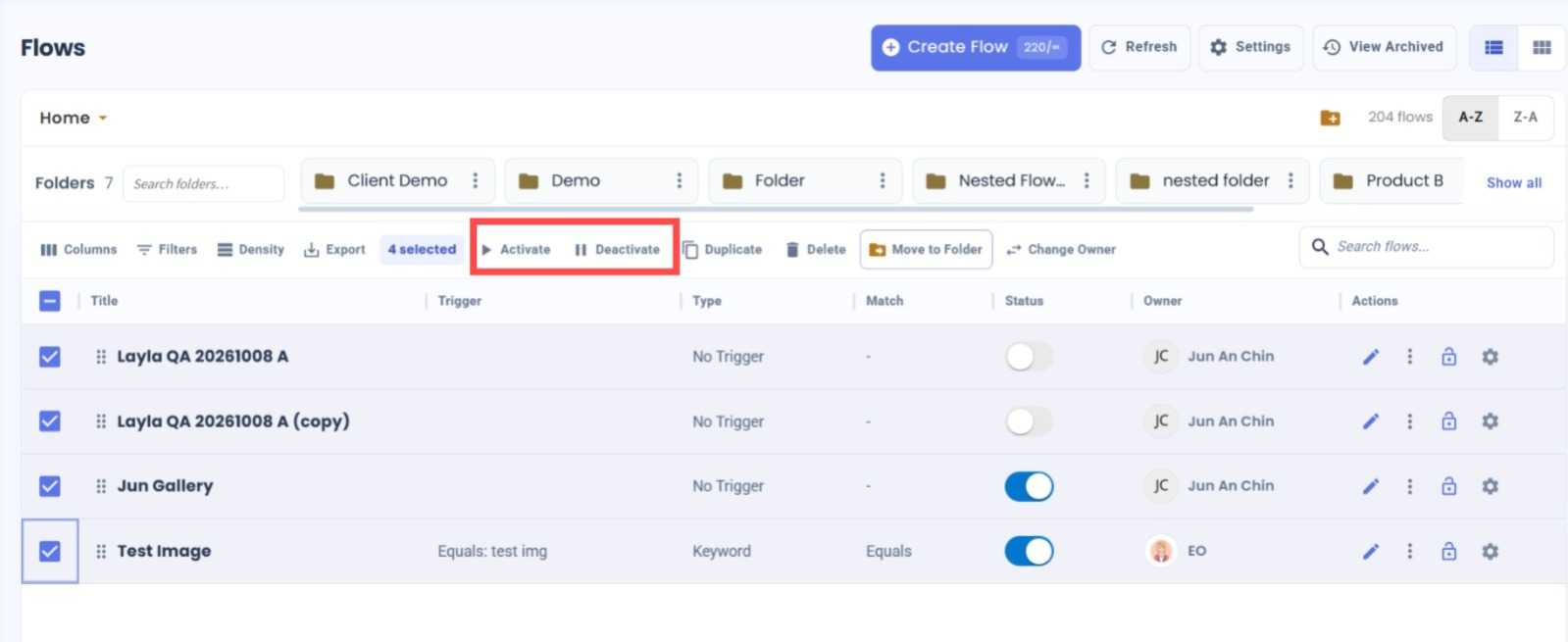
4. Activate & Deactivate Multiple Flows
What's New:
You can now activate or deactivate multiple flows at once directly from the Flow Module.
What it means to you:
No more updating each flow individually. Simply select multiple flows and activate or deactivate them all in one go, making flow management faster and easier. 🚀
How you can go about it:
Go to the Flow Module.
Select the flows you want to update.
Click Activate to activate all selected flows, or Deactivate to deactivate them.
Done! Your selected flows will be updated at once. ✨
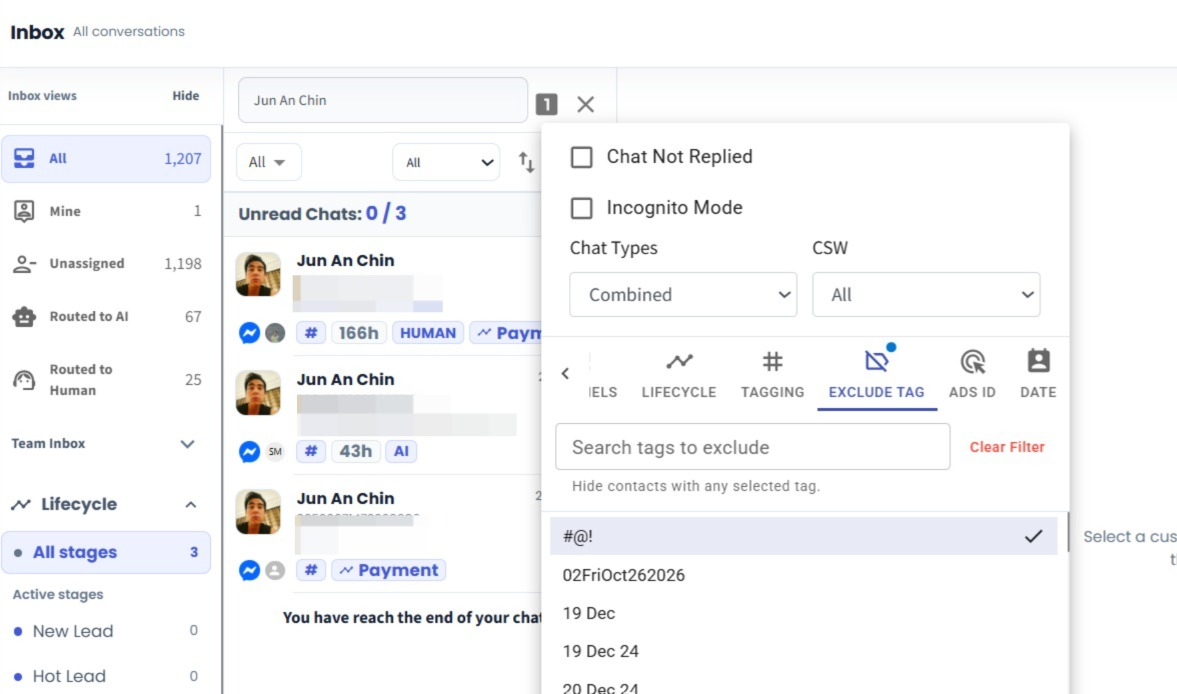
5. Exclude Tagged Contacts from Inbox Filters
What's New:
We've added Exclude Tag to the Inbox filters. You can now hide chats from contacts with selected tags, making it easier to narrow down your conversation list.
What it means to you:
Focus on the customer groups you need to follow up with, without manually checking unrelated chats. For example, exclude contacts tagged Completed while reviewing enquiries that still need attention.
How you can go about it:
Go to Inbox and open Filters.
Choose Exclude Tag and select the tags you want to leave out.
Apply the filter. Matching contacts' chats will be excluded from the filtered results.
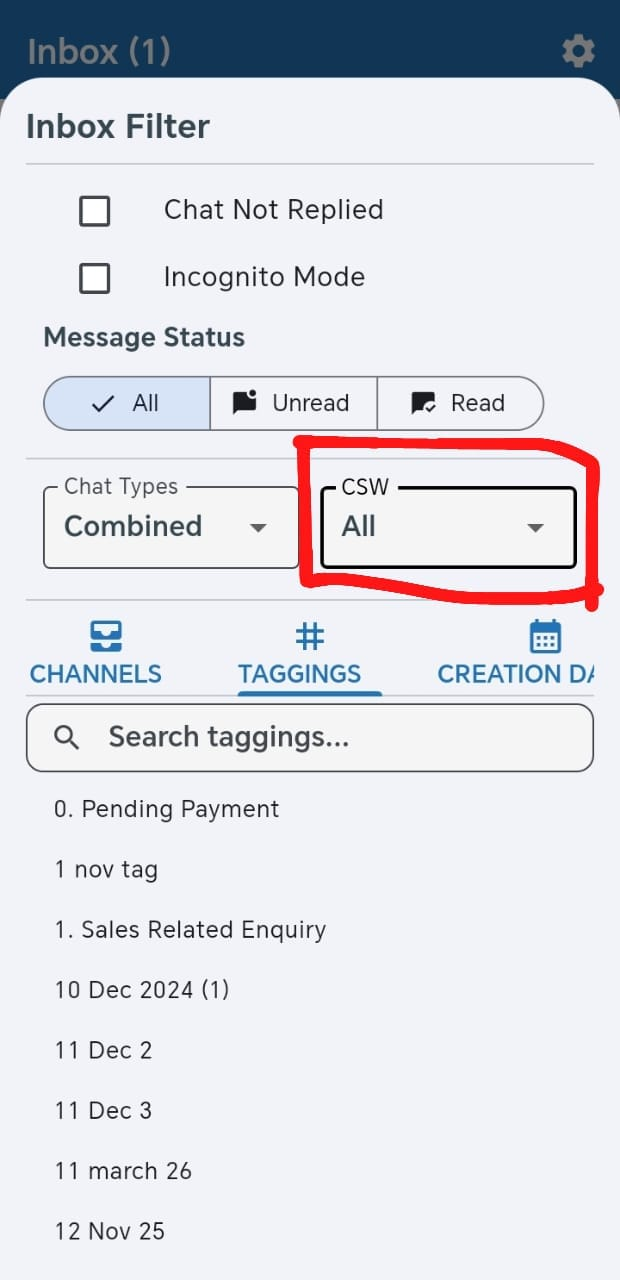
6. Filter Active and Expired Chats in Strive GO
What's New:
We've added a CSW (customer service window) filter to the Strive GO Inbox. Choose Active, Expired or All to view conversations by their service-window status.
What it means to you:
Keep expired chats out of your active working list so you can focus on current conversations. Switch to Expired whenever you need to review chats with a closed service window.
How you can go about it:
Open your Inbox in Strive GO.
Tap the filter icon above the chat list and find CSW.
Select Active, Expired or All to update your chat list.
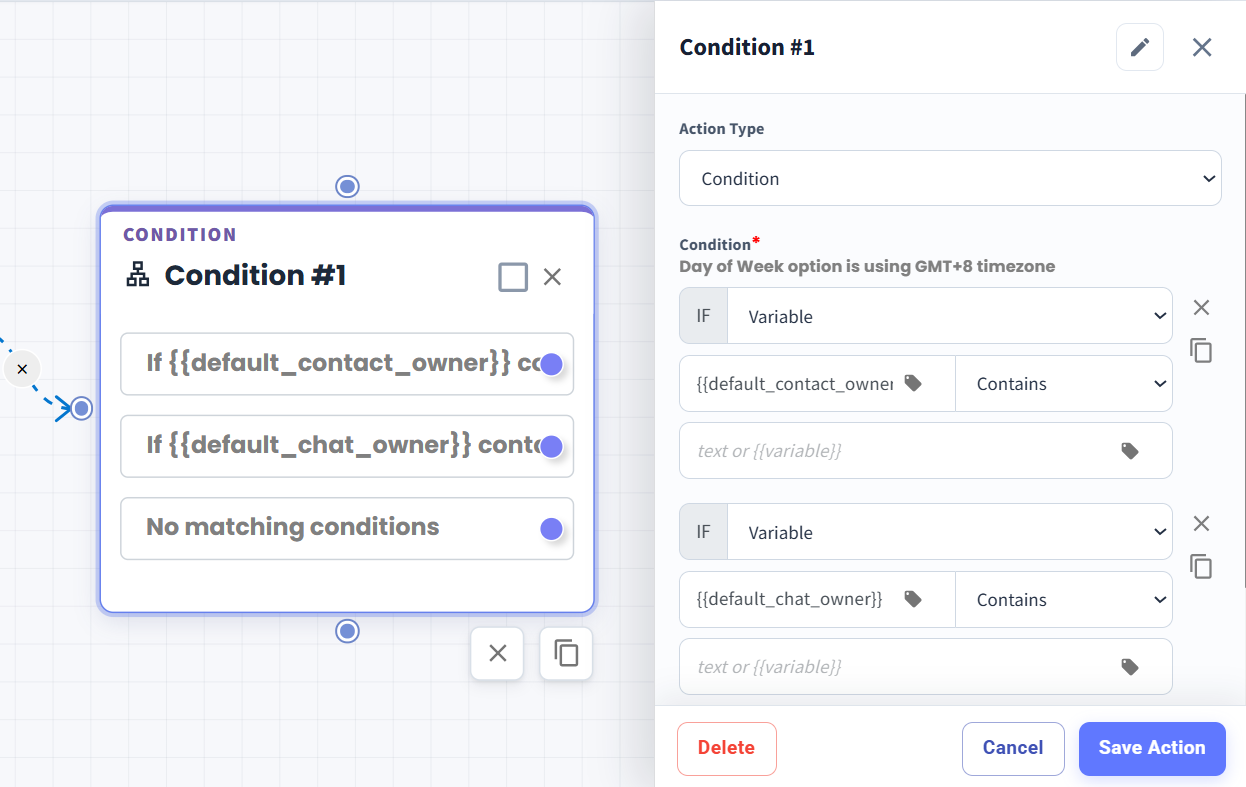
7. New Owner Variables in Flowbuilder
What's New:
We've added two new options in Flowbuilder: {{default_contact_owner}} and {{default_chat_owner}}. 🎉
What it means to you:
You can now use {{default_contact_owner}} and {{default_chat_owner}} across Flowbuilder nodes that support variables. This gives you more flexibility when building automated workflows based on contact and chat ownership. 🚀
How you can go about it:
Go to the Flowbuilder module and create or edit a flow.
Select a node that supports variables.
Choose {{default_contact_owner}} or {{default_chat_owner}} from the available options.
Configure the node as needed and save your flow. ✨
8. Clearer Button Routing for FB/IG Ad-Click Flows
What's New:
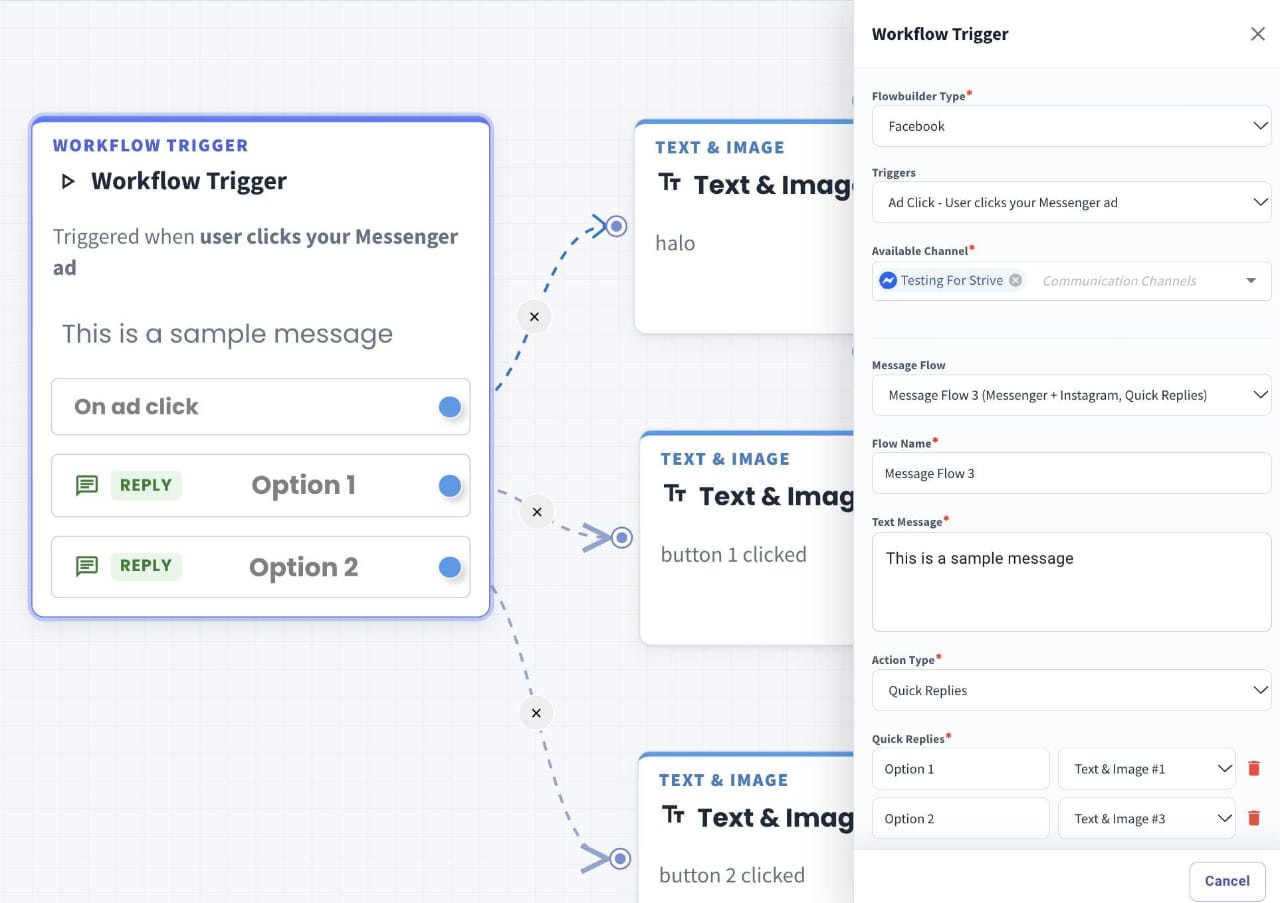
We've improved how Quick Reply button routing is displayed in FB/IG ad-click Workflow Triggers. You can now see each button's connection to its next step more clearly on the flow canvas.
What it means to you:
Review your ad-click flows with less guesswork. The clearer routing display makes it easier to check where each button leads and spot a button connected to the wrong step before using the flow.
How you can go about it:
Go to the Flow Module and select Facebook or Instagram as the Flowbuilder type.
Select Ad Click as the trigger.
Enter your text message and add your Quick Replies.
Drag the connection point beside each Quick Reply to the right to connect it to a new step.
9. New Activity Date Filter in Touchpoints
What's New:
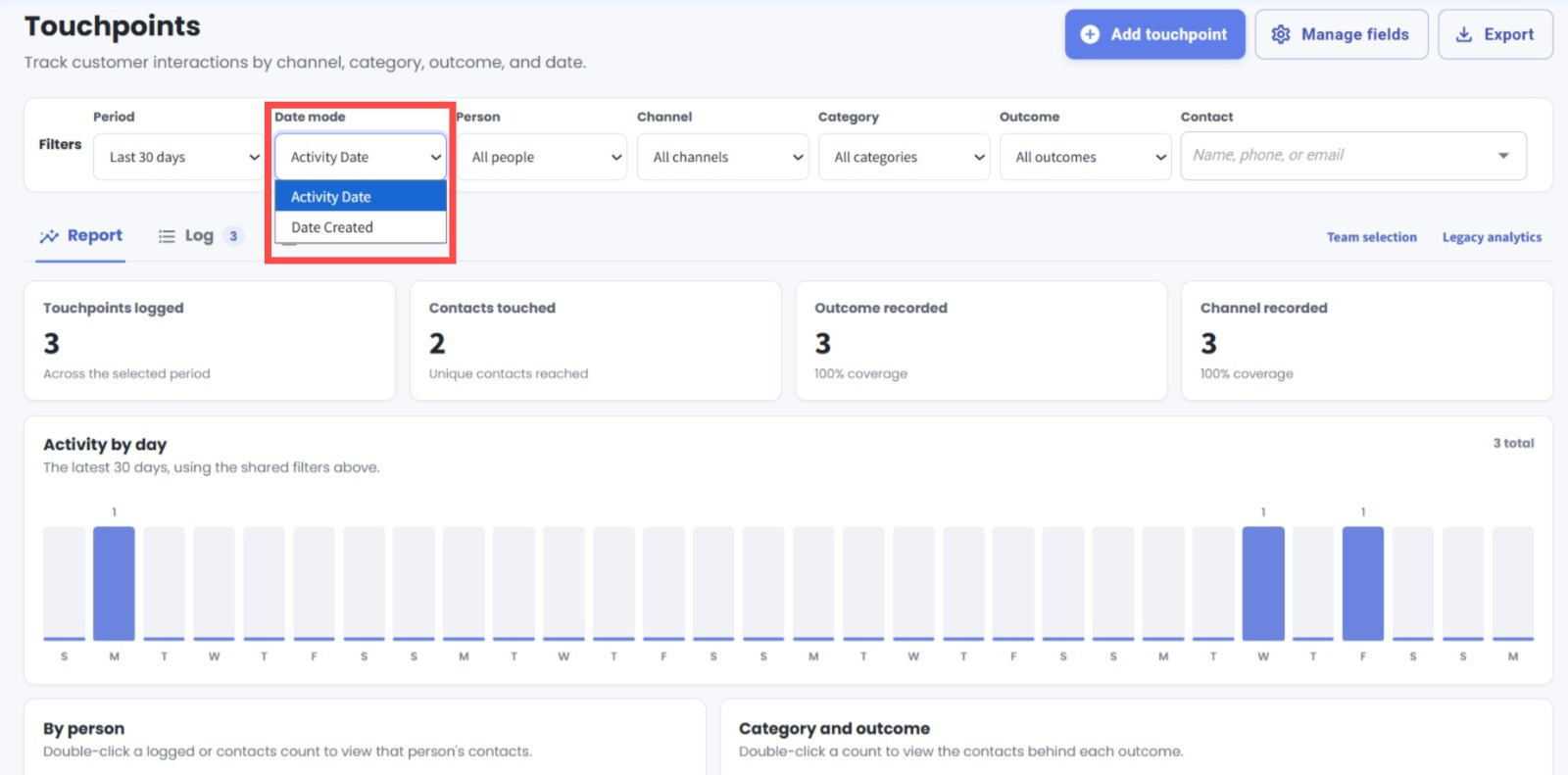
We've added a new Activity Date option to the Date Mode filter in the Touchpoints Module. You can now filter touchpoints based on the Date & Time set for each touchpoint, in addition to the date it was created. ✨
What it means to you:
This gives you more flexibility when tracking customer interactions. You can view touchpoints based on when the activity actually took place, rather than only when the record was created, making it easier to track activities within your desired period. 🎯
How you can go about it:
Go to the Touchpoints Module.
Under Filters, find the Date Mode dropdown.
Select Activity Date to filter by the Date & Time set for each touchpoint, or select Date Created to filter by when the touchpoint was created.
Set your desired period to view the relevant touchpoints. 🚀
10. Set Channel and Outcome as Optional or Required in Touchpoints
What's New:
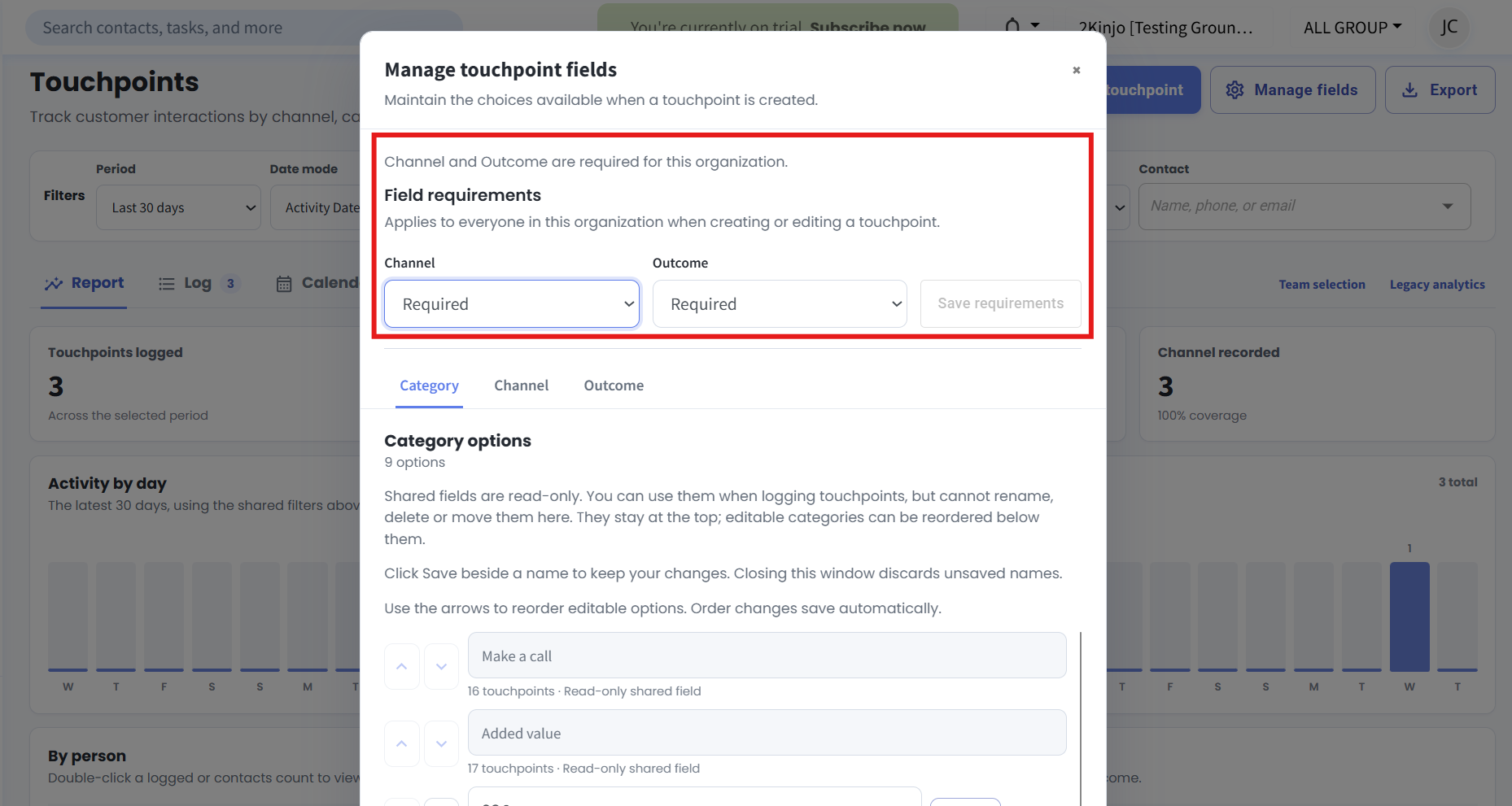
We've added a new field requirements setting in the Touchpoints Module. You can now set Channel and Outcome as either Optional or Required for your organization. 🎉
What it means to you:
This gives you more control over how touchpoints are logged. You can make these fields required to ensure consistent data collection, or set them as optional to give your team more flexibility when recording customer interactions. ✨
How you can go about it:
Go to the Touchpoints Module.
Click Manage fields in the top-right corner.
Under Field requirements, choose Optional or Required for Channel and Outcome.
Click Save requirements to apply your changes. 🚀
____________________________________________________________________________
This wraps up the October 2026 update. Thank you for your continued support and trust in Strive. Stay tuned for more improvements in the next update 🙂