Understanding Flowbuilder Trigger
Workflow triggers determine how and when a flow will start.
Each trigger type activates a workflow based on different events such as incoming messages, tags, or external integrations.
Below is an explanation of each available trigger type.
1. Keyword Based Trigger
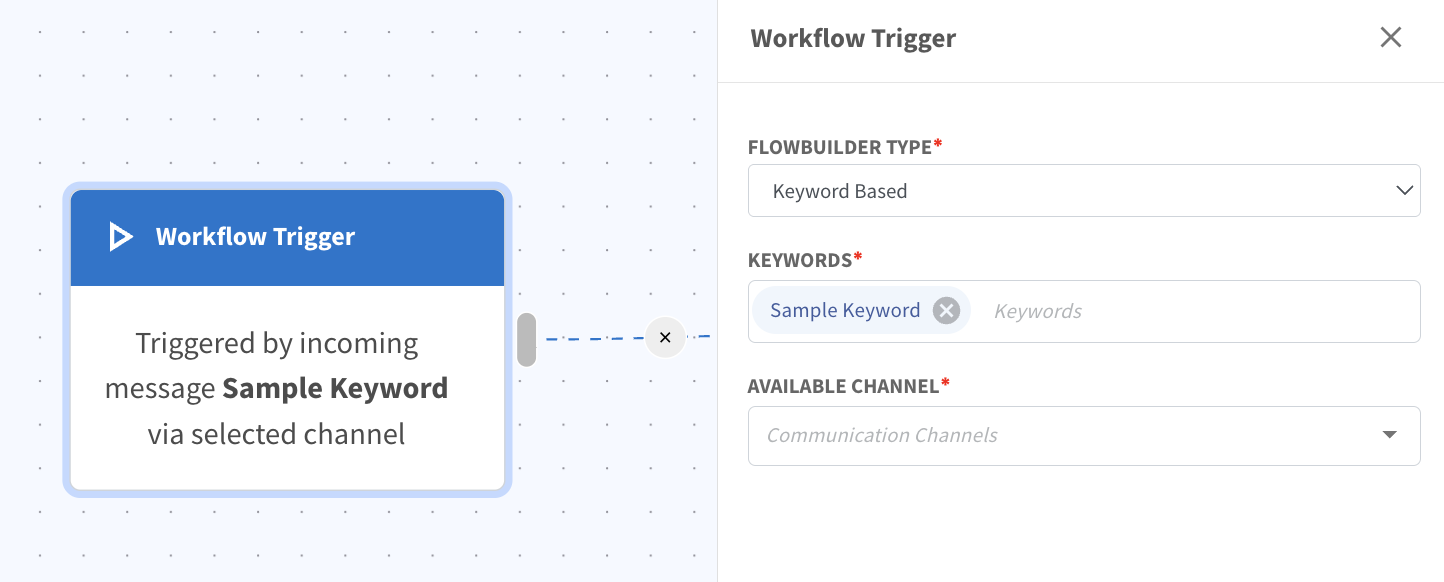
Keyword Based triggers start a workflow when a contact sends a message that equals to the specific keyword.
How it works
When a contact sends a message that matches the defined keyword, the system will automatically trigger the flowbuilder. The keyword based flow is non-case sensitive so if the contact message in exactly same with the keyword but capitalised, the flow would still be triggered.
Example
If the keyword is: "promo"
When a contact sends: "promo" or "PROMO"
The workflow will be triggered automatically.
Common Use Cases
Automated replies
Ads entry keywords
Customer self-service flows
2. Tagging Based Trigger
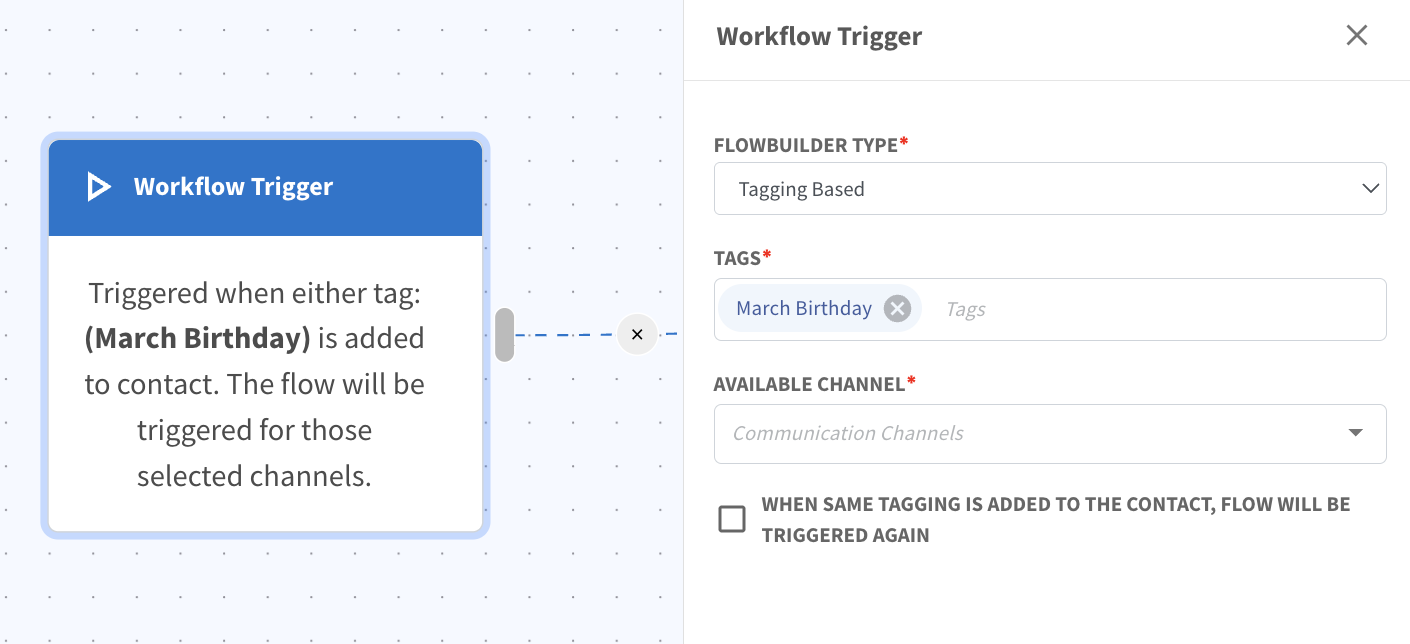
Tagging Based triggers activate a workflow when a specific tag is added to a contact.
How It Works
A tag is added to a contact.
The system checks if the tag matches the tag configured in the trigger.
If the tag matches, the workflow will start for that contact.
The contact will then proceed through the steps defined in the workflow.
This allows you to automatically trigger workflows based on tagging actions within the system.
Example
If the tag:
Webinar Registered
is added to a contact, the workflow can automatically trigger actions such as:
Sending a webinar confirmation message
Providing the event details
Sending a reminder before the webinar starts
Available Channel
You can define the channel(s) where the workflow should be available.
The flow will only be triggered for the selected communication channels.
Trigger Flow Again for Same Tag
There is also a checkbox option:
“When same tagging is added to the contact, flow will be triggered again.”
When this option is enabled, the workflow will trigger again even if the same tag is added to the contact multiple times.
This means that if a contact is re-imported with the same tag, the workflow will be triggered again for that contact.
Example Use Cases
Trigger onboarding messages when New Lead tag is added
Send webinar details when Webinar Registered tag is applied
Re-trigger campaigns when contacts are re-imported with the same tag
3. Non-Keyword Based Trigger
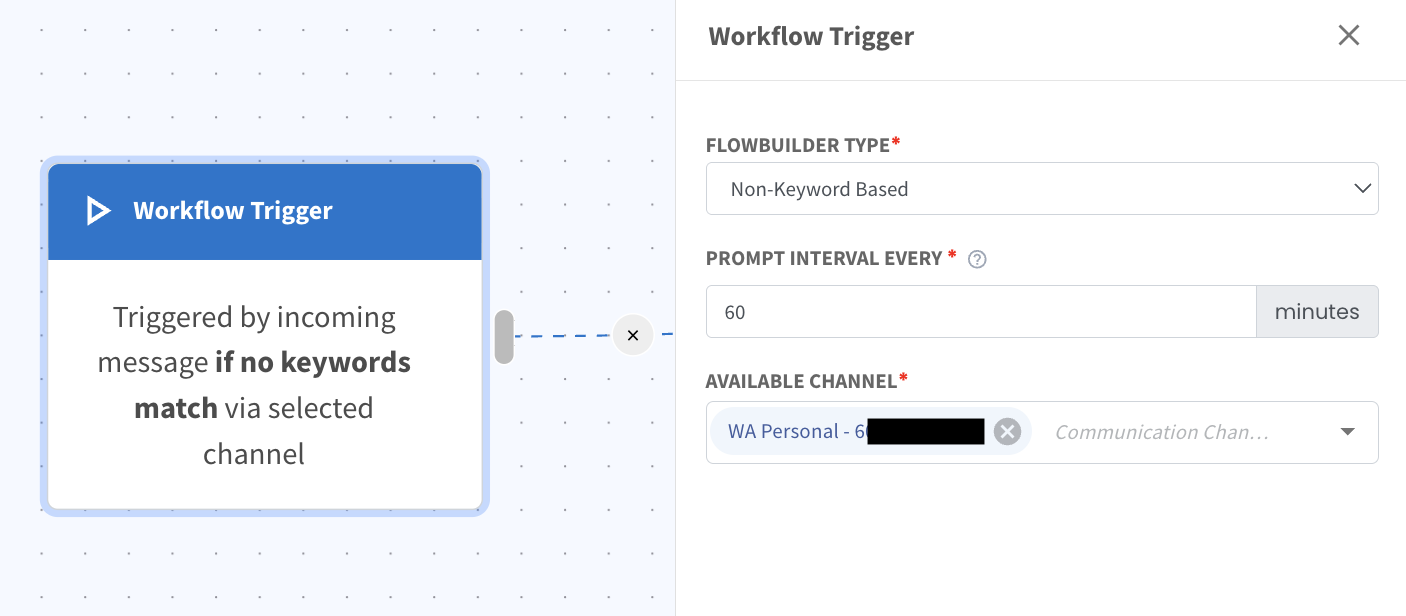
Non-Keyword Based triggers activate when a contact sends any message that does not match existing keywords.
How it works
If the incoming message does not match any keyword-based flow, this trigger can act as a default fallback workflow.
Example
If a user sends: "HI" or "Hello"
and no keyword flow exists for those messages, the system can trigger a general welcome flow.
Common Use Cases
Default auto-reply
First contact greeting
Chat routing
AI Agent entry
4. Facebook Trigger
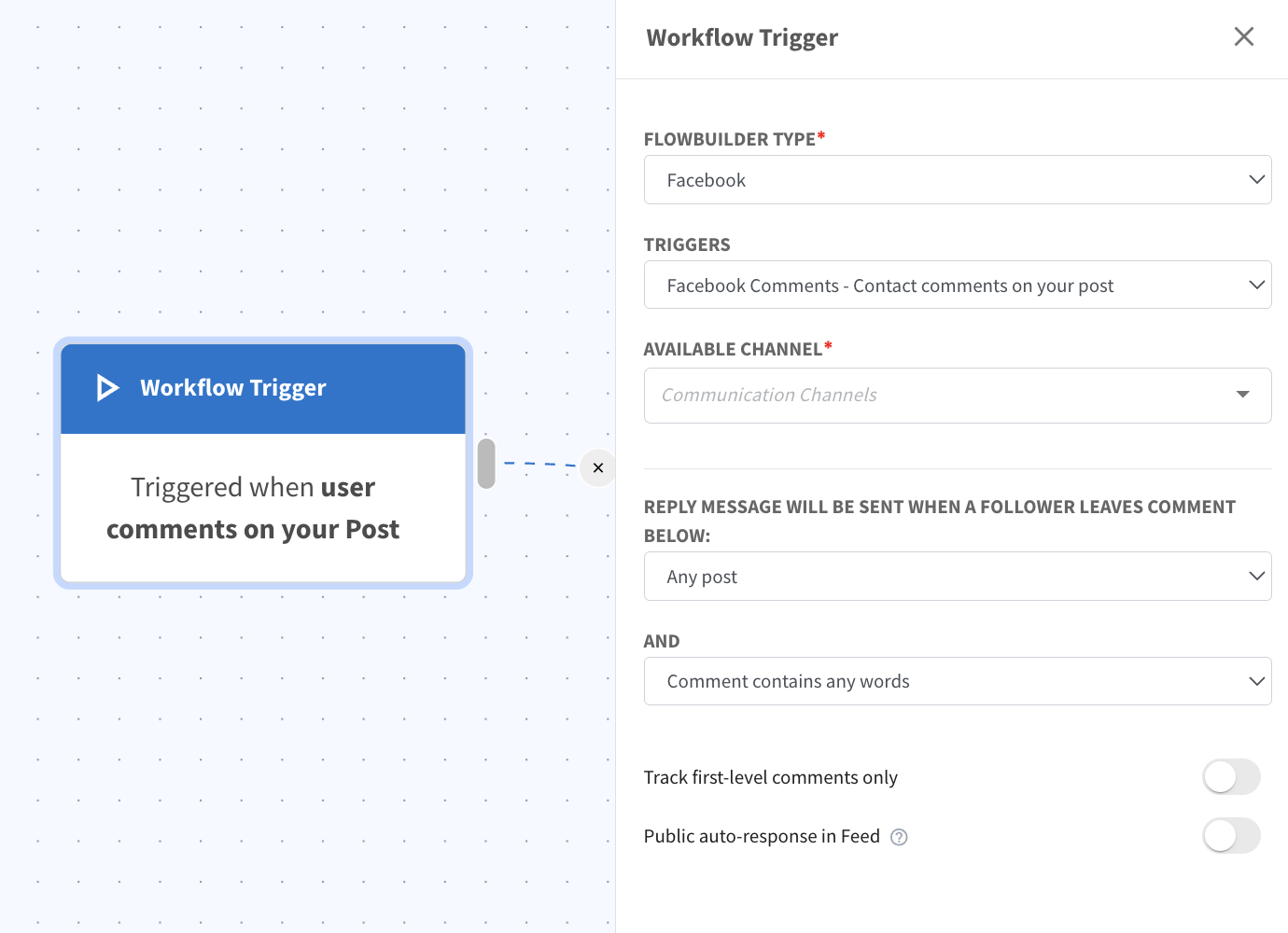
The Facebook Trigger activates a workflow when a user comments on your Facebook post.
How it works
When a user leaves a comment on your Facebook post, the system can automatically trigger the workflow and send a reply message to the user.
This allows you to automatically engage users who interact with your posts.
Configuration Options
Trigger Type
You can select the trigger: "Facebook Comments – Contact comments on your post
Reply Message Condition
You can define which post should trigger the workflow:
Any Post – Trigger when a user comments on any Facebook post.
Specific Post – Trigger only when the comment is made on a selected post.
You can specify how the comment should be evaluated before triggering the workflow.
There are two available options:
Comment contains any words
The workflow will be triggered whenever a user comments on the selected post, regardless of the content of the comment.
This means any comment will activate the workflow.
Example
User comments: "Interested" or "More info please"
All comments will trigger the workflow.
Comment contains specific words
This field allows you to define specific keywords that must appear in the comment for the workflow to be triggered.
Only comments containing the defined keywords will activate the workflow.
If the comment does not contain any of the specified keywords, the workflow will not be triggered.
Example
If the keywords are set as: "price", "promo" or "details"
The workflow will trigger when a user comments: "price", "can i get the promo" or "details please"
Comment Exclude These Keywords
This field allows you to prevent the workflow from triggering when certain keywords appear in the comment.
If the comment contains any excluded keywords, the workflow will not be triggered, even if it matches the included keywords.
This helps prevent unwanted or irrelevant comments from activating the workflow.
Example
If the excluded keywords are: "test" , "spam", or "bot"
The workflow will not trigger when a user comments: "test", "this is spam", "bot message"
Additional Settings
Track first-level comments only
When enabled, the system will only track direct comments on the post, not replies to other comments.
Public auto-response in Feed
When enabled, the system will automatically post a public reply to the comment in the Facebook feed.
Common Use Cases
Messenger welcome message
Lead capture
Facebook campaign automation
Customer onboarding
5. Instagram Trigger
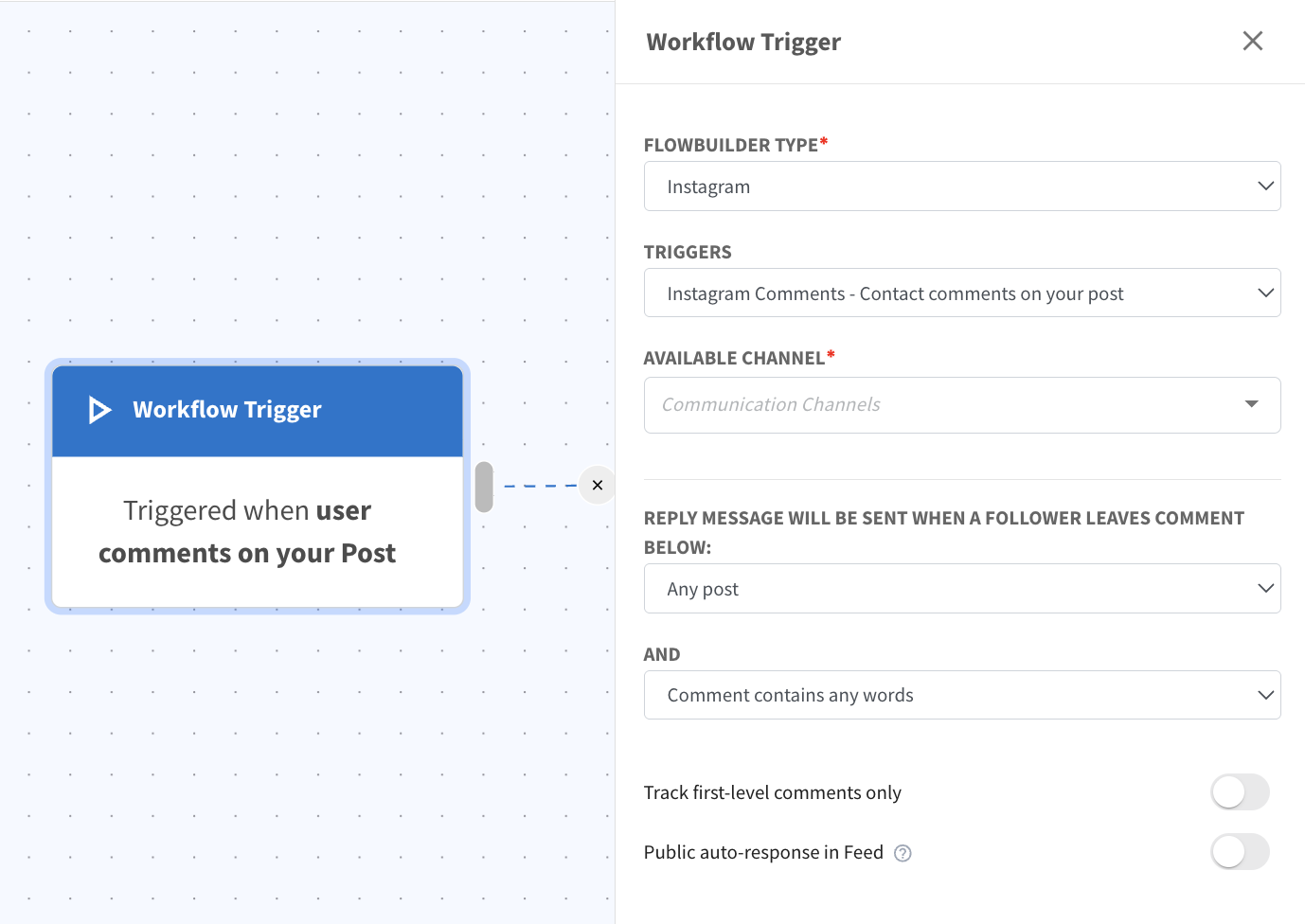
The Instagram Trigger activates a workflow when a user comments on your Instagram post.
How it works
When a follower leaves a comment on your Instagram post, the system can automatically trigger a workflow and send a response message.
This helps convert engagement on posts into direct conversations.
Configuration Options
Trigger Type
Instagram Comments – Contact comments on your post
Reply Message Condition
You can select which posts should activate the trigger:
Any Post – Trigger when a user comments on any Instagram post.
Specific Post – Trigger only for selected posts.
Keyword Filtering
You can define how comments are evaluated before the workflow is triggered.
There are two available options:
Comment contains any words
The workflow will be triggered whenever a user comments on the selected Instagram post, regardless of the content of the comment.
This means any comment left on the post will activate the workflow.
Example
User comments: "Interested!" or "Tell me more"
All of these comments will trigger the workflow.
Comment contains specific words
The workflow will only be triggered when the comment contains certain keywords that you define.
If the comment does not contain the specified keywords, the workflow will not be activated.
Example
If the keywords are set as: "link", "menu", or "booking"
The workflow will trigger when a user comments: "link please", "can I see the menu?", or "how to booking"
But it will not trigger if the user comments: "nice post" or "interested"
Comment Includes These Keywords
This field allows you to specify keywords that must appear in the comment in order for the workflow to start.
Only comments containing these keywords will trigger the workflow.
Example
If the keywords are: "DM", "catalog", "order"
The workflow will trigger when a user comments: "DM me", "catalog please" or "how to order?"
Comment Exclude These Keywords
This field allows you to define keywords that should prevent the workflow from triggering.
If a comment contains any of these excluded keywords, the automation will not run.
This helps filter out irrelevant or unwanted comments.
Example
If excluded keywords are: "test", "fake", "bot"
The workflow will not trigger when a user comments: "test message" , "fake promo?"
Track First-Level Comments Only
When enabled, the system will only monitor comments directly posted on the Instagram post.
Replies to other comments will not trigger the workflow.
Public Auto-Response in Feed
When enabled, the system will automatically send a public reply to the user's comment under the Instagram post.
This reply will appear in the comment section and can be used to acknowledge the user or guide them to check their direct messages.
Common Use Cases
Converting post engagement into DM conversations
Comment-to-DM marketing campaigns
Lead generation from Instagram posts
Giveaway or promotion automation
6. Webhook Trigger
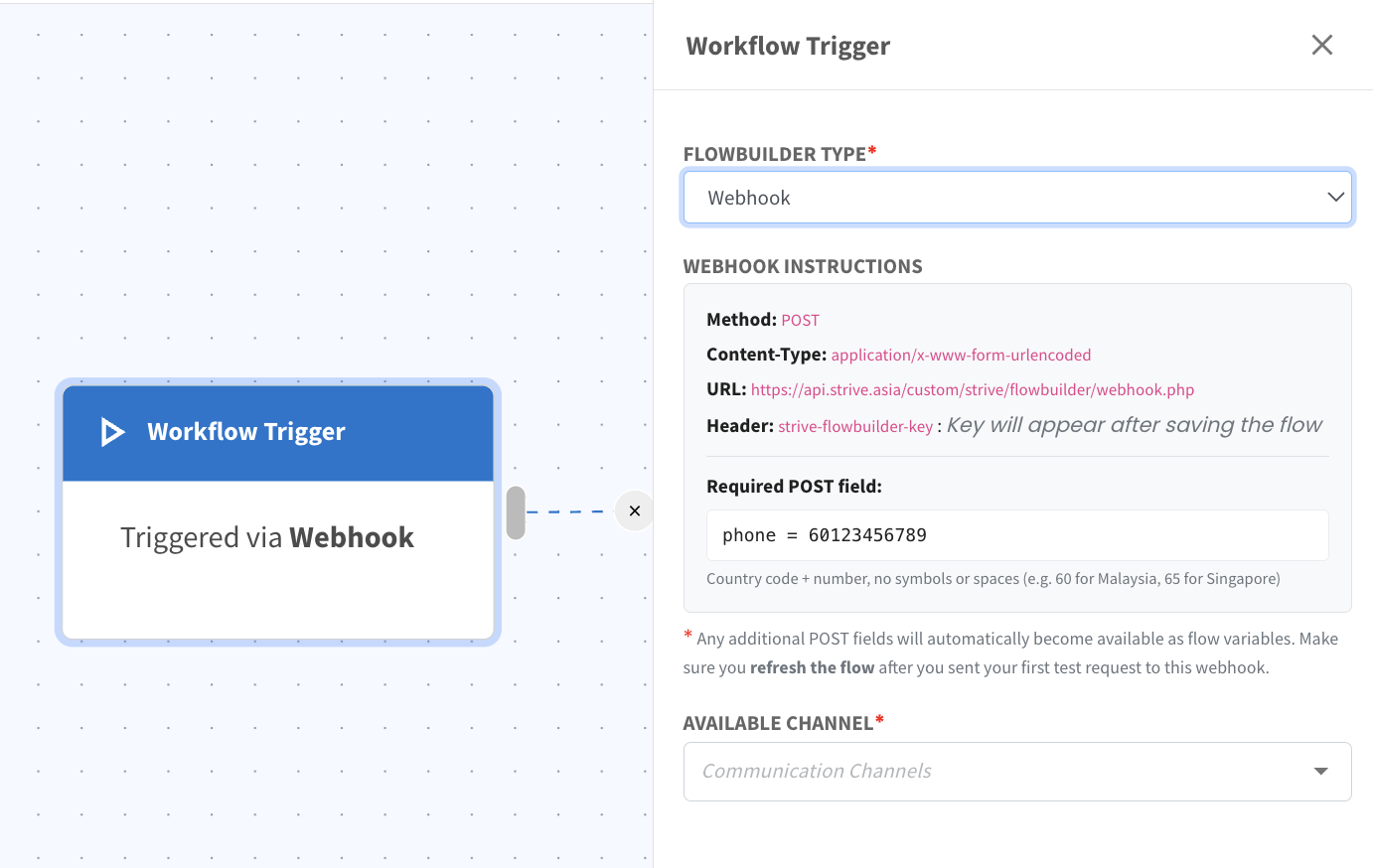
Webhook Trigger allows external systems to start a workflow using an API request.
How it works
When a system sends a POST request to the webhook URL, the workflow will be triggered.
This allows integrations with external platforms such as:
Shopify
Google Sheets
Custom applications
Example
When a new row is added in Google Sheets, the data can be sent to the webhook endpoint, which then triggers the selected workflow automatically.
Common Use Cases
Abandoned cart automation
Form submissions
New order placed
7. No Trigger
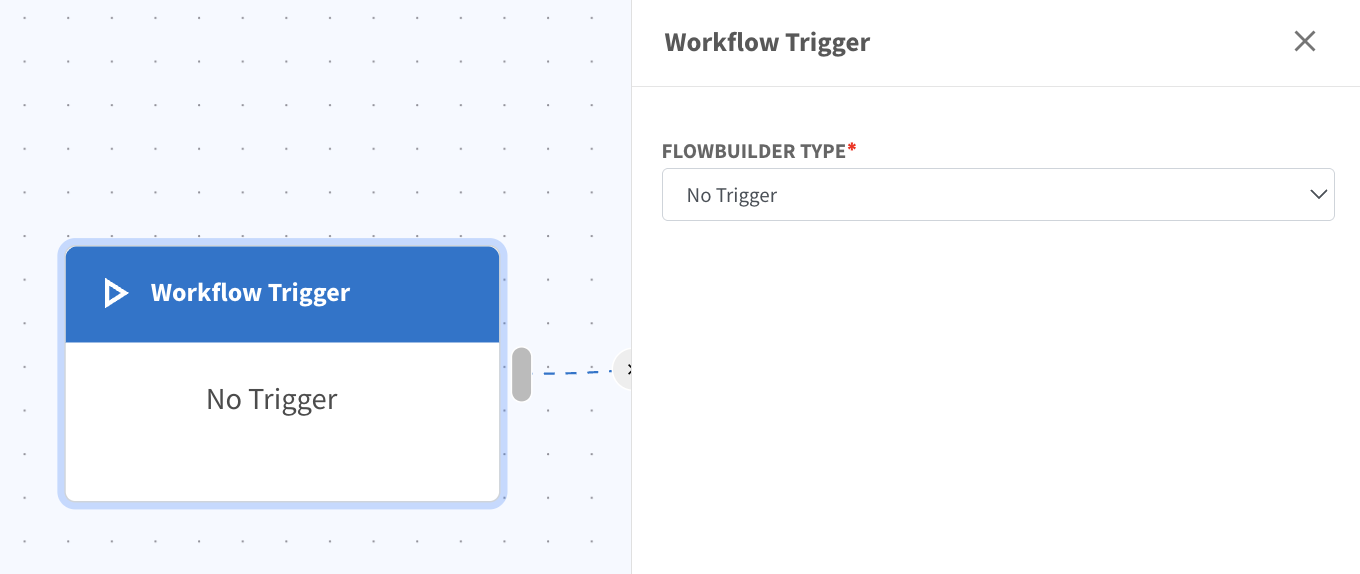
No Trigger means the workflow can only be triggered via manually or via the "Trigger Another Flow" action.
How it works
The workflow must be triggered manually or from another workflow.
Common Use Cases
Internal flows
Sub-flows used by other workflows
Manual actions triggered by agents
Testing workflows