How to Set Up Lifecycle and Filter Contacts by Lifecycle
Only super admins can turn on Lifecycle and set up stages, in Settings > Lifecycle. After that, a contact's stage is changed from Contact or Inbox, and contacts and chats can be filtered by stage.
Lifecycle tracks which stage each contact is at in your sales or customer journey (for example New Lead, Hot Lead or Proposal Sent). Use it so your team can see and filter contacts and chats by stage.
Before you start
Only super admins can change Lifecycle settings. These are in the Settings > Lifecycle tab.
You update a contact's stage, and filter contacts and chats, from Contact or Inbox.
1. Turn on Lifecycle and set up stages (super admin)
Click the Settings icon at the bottom left.
Click the Lifecycle tab.
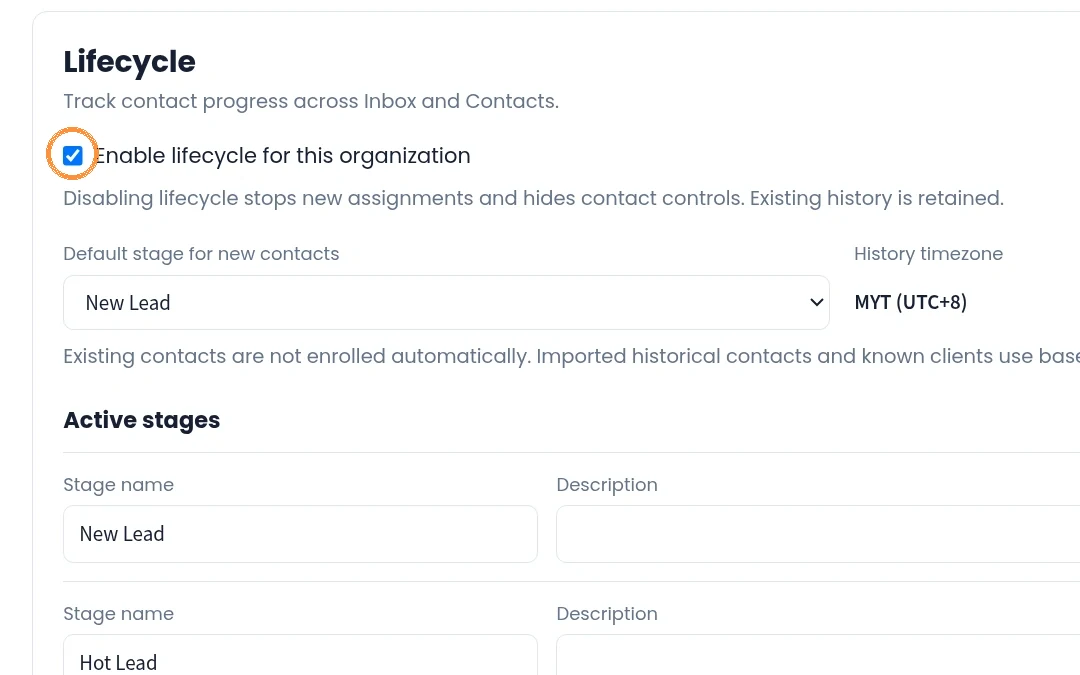
Make sure Enable lifecycle for this organization is ticked.
Under Default stage for new contacts, select the stage new contacts start in (for example New Lead), or leave No automatic assignment.
Click Add stage to add a new stage. Use Add Lost stage to add a lost stage.
Type the stage name in Stage name (for example Proposal Sent).
Optional: type a short description in Description (for example Proposal or quotation sent to the contact).
Optional: use the ↑ and ↓ arrows to put the stages in order.
Click Save settings.
2. Change a contact's stage from Contact
Click the Contact icon in the left sidebar.
Click the contact you want to update.
Click the Lifecycle icon.
Click the Current stage dropdown and select the new stage. Or click > to move the contact to the next stage.
Click × to close the Lifecycle panel.
3. Change a contact's stage from Inbox
Click the Inbox icon in the left sidebar.
Click the chat of the contact you want to update.
In Contact Details, scroll down to Lifecycle and select the new stage in Current stage.
4. Filter contacts by stage
Click the Contact icon in the left sidebar.
Click the filter icon.
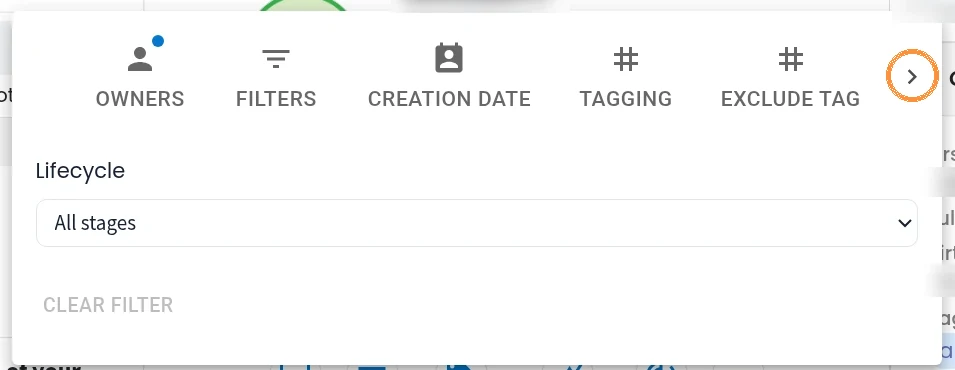
Click > to see more filter tabs, then click the LIFECYCLE tab.
Select the stage to filter by (or All stages / No stage). The contact list updates straight away.
Optional: click Clear Filter to show all contacts again.
5. Filter chats by stage in Inbox
Click the Inbox icon in the left sidebar.
In the left sidebar under Lifecycle, click a stage to show only chats in that stage.
Or click the filter icon above the chat list, click the LIFECYCLE tab and select a stage (options include All stages, No stage and Unlinked chats).
Optional: click Clear Filter to show all chats again.
Common problems and fixes
I can't change Lifecycle settings. Only super admins can change Lifecycle settings. Ask a super admin in your organization to make the change.
Lifecycle controls don't show on contacts. Lifecycle may be turned off. A super admin can go to Settings > Lifecycle, tick Enable lifecycle for this organization and click Save settings. Turning Lifecycle off stops new assignments and hides contact controls, but existing history is kept.
New contacts have no stage. Default stage for new contacts is set to No automatic assignment. A super admin can pick a default stage in Settings > Lifecycle and click Save settings.
New or reordered stages aren't showing. Check that Save settings was clicked after the change.
I can't find the LIFECYCLE filter tab. It is hidden past the first tabs. In the filter panel, click > to see more filter tabs.
My contact or chat list looks incomplete. A Lifecycle filter may still be on. Click Clear Filter.