How to Update Name or Phone Number of Profile
Click the gear icon at the bottom left, then Account (strive.asia/manage). Click EDIT next to Personal Information, change First name, Last name or Phone number (pick the country code, type the number without the leading 0), then click Save changes at the bottom right. No OTP is needed.
You can update the first name, last name and phone number on your own Strive profile from the Account page. It takes less than a minute.
Before you start
Log in to Strive with your own account. You update your own profile on this page.
Have the new phone number ready, with its country code (for example +60 for Malaysia).
First name and Phone number are required (marked with a red *), so they can't be left empty.
1. Open your Account page
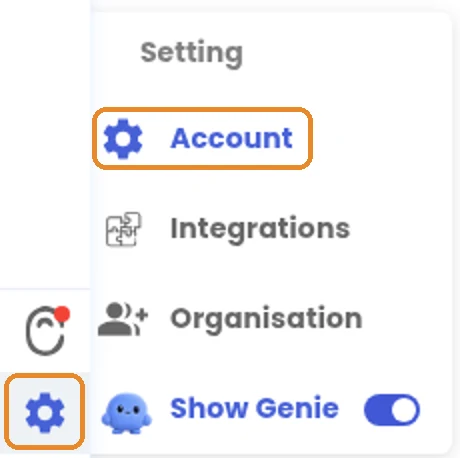
Click the gear icon at the bottom left of the Strive sidebar. A menu headed Setting opens.
Click Account. This opens strive.asia/manage, so you can also go straight there.
2. Turn on editing
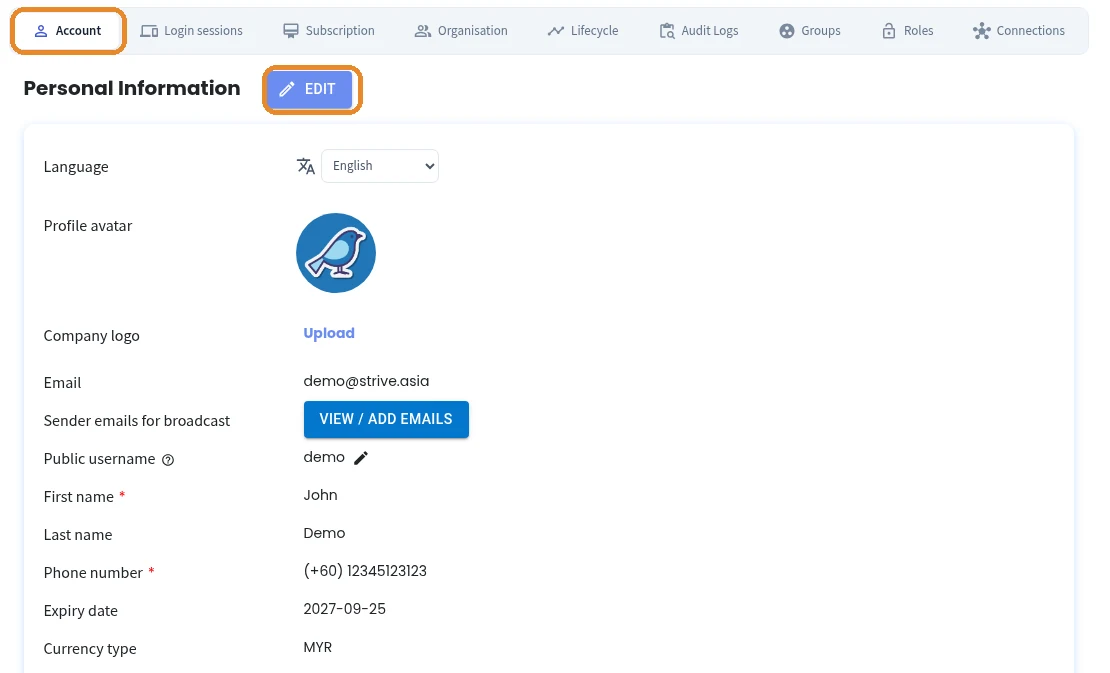
Make sure the Account tab at the top is selected.
Next to Personal Information, click EDIT (the pencil button). The button changes to CANCEL EDIT and the fields become editable.
3. Update your name or phone number
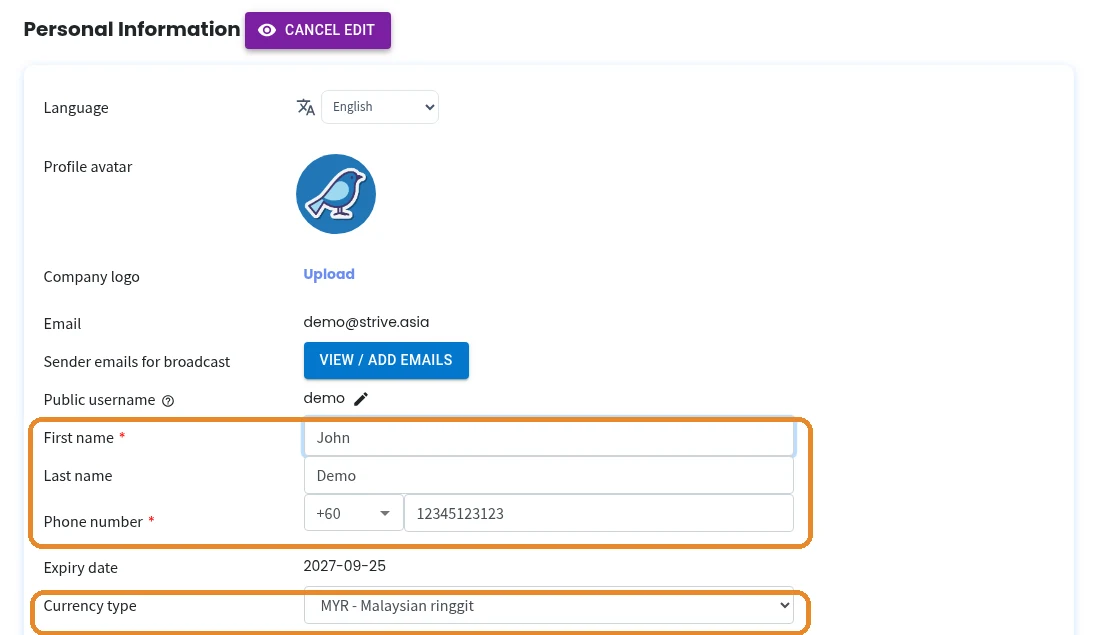
Change First name and Last name as needed.
To change Phone number, choose the country code from the dropdown (for example +60), then type the number in the box next to it without the leading 0. For example, for 012-345 6789 choose +60 and type 123456789. Strive doesn't warn you if you include the 0.
You can also change Currency type (for example MYR - Malaysian ringgit) in the same form.
4. Save your changes
Click the blue Save changes button at the bottom right of the form. It only appears in edit mode.
There's no verification code or OTP. A new phone number is saved straight away.

After you save
Personal Information shows your new details. The phone number appears with its country code, for example (+60) 12345123123.
There's also a Getting Started quest for this: Home > Journey > Update Name/Contact Number in Profile (+50 XP).
Common problems and fixes
The fields can't be edited. Click EDIT next to Personal Information first. Until you do, the details are read-only.
I can't find Save changes. It only appears after you click EDIT. Scroll down to the bottom right of the form.
It won't save. First name and Phone number are required. Fill them in and save again.
The phone number has an extra 0, for example (+60) 0123456789. Click EDIT, remove the leading 0 from the number, and click Save changes again.
The phone number shows the wrong country code. Choose the right code from the dropdown and don't type the country code in the number box.
I want to stop without saving. Click CANCEL EDIT. Any changes you haven't saved are discarded.
FAQs
Can I change my email address? No. Email is read-only, so you can't change it yourself. Contact Strive support and they'll change it for you.
Do I need to verify my new phone number? No. There's no verification code or OTP. The new number is saved as soon as you click Save changes.
Can I change my currency here? Yes. Currency type is a dropdown in the same form. Choose the currency and click Save changes.
How do I change my password? Use CHANGE PASSWORD on the same page.
How do I change my public username? Click the pencil icon next to Public username.
How do I change the name customers see on WhatsApp? That's set in Meta Business Suite, not on this page. See the Meta Business Suite article below.