Understanding Flowbuilder Strive Actions
Strive Actions allow you to perform system actions or automate processes inside a workflow.
Unlike Reply Actions (which send messages), Strive Actions are used to manage contacts, trigger campaigns, update CRM records, or connect with external systems.
Below is an explanation of each available Strive Action.
1. Send App Alert
This action sends an alert notification to the Strive mobile app.
It is useful for notifying users or team members when a specific event occurs in the workflow.
Example Use Cases
Notify a sales agent when a new lead is created
Alert staff when a customer requests assistance
Inform team members of a new inquiry
2. Send WA API Message V2
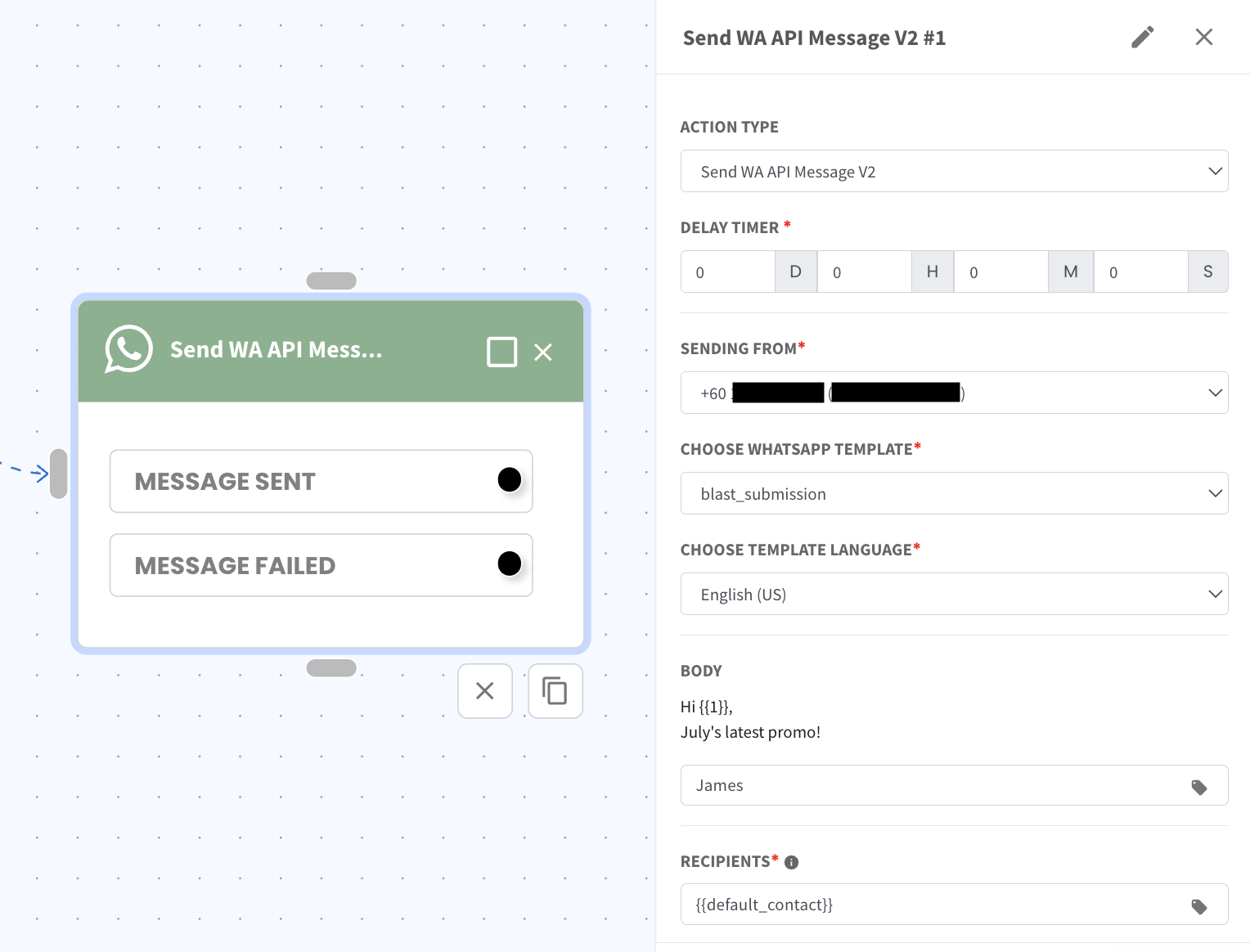
This action allows you to send a WhatsApp API template message to a contact.
WhatsApp requires businesses to use approved message templates when sending messages outside the 24-hour conversation window. This action allows you to select an approved template and send it automatically within your workflow.
Configuration Fields
Sending From
Select the WhatsApp API number that will send the message.Choose WhatsApp Template
Select the approved WhatsApp message template that you want to send.Choose Template Language
Select the language of the template.Body
Displays the message content of the selected template.
If the template contains variables such as {{1}}, {{2}}, etc., you must provide values that will replace those variables.
Example
Template message:
Hi {{1}}, July's latest promo!Variable value:
JamesMessage sent to the contact:
Hi James, July's latest promo!
Recipients
This specifies who will receive the message.
By default it is set as:{{default_contact}}
This means the message will be sent to the contact currently going through the workflow.
Workflow Paths
After the message is sent, the workflow will continue based on the result:
Message Sent
The workflow continues through this path when the message is successfully delivered.Message Failed
The workflow continues through this path if the message fails to send (fail could be due to contact doesn't have phone number).
Example Use Cases
Order confirmation notifications
Appointment reminders
Delivery updates
Promotional broadcasts
Customer follow-ups
3. Send WA Personal Message
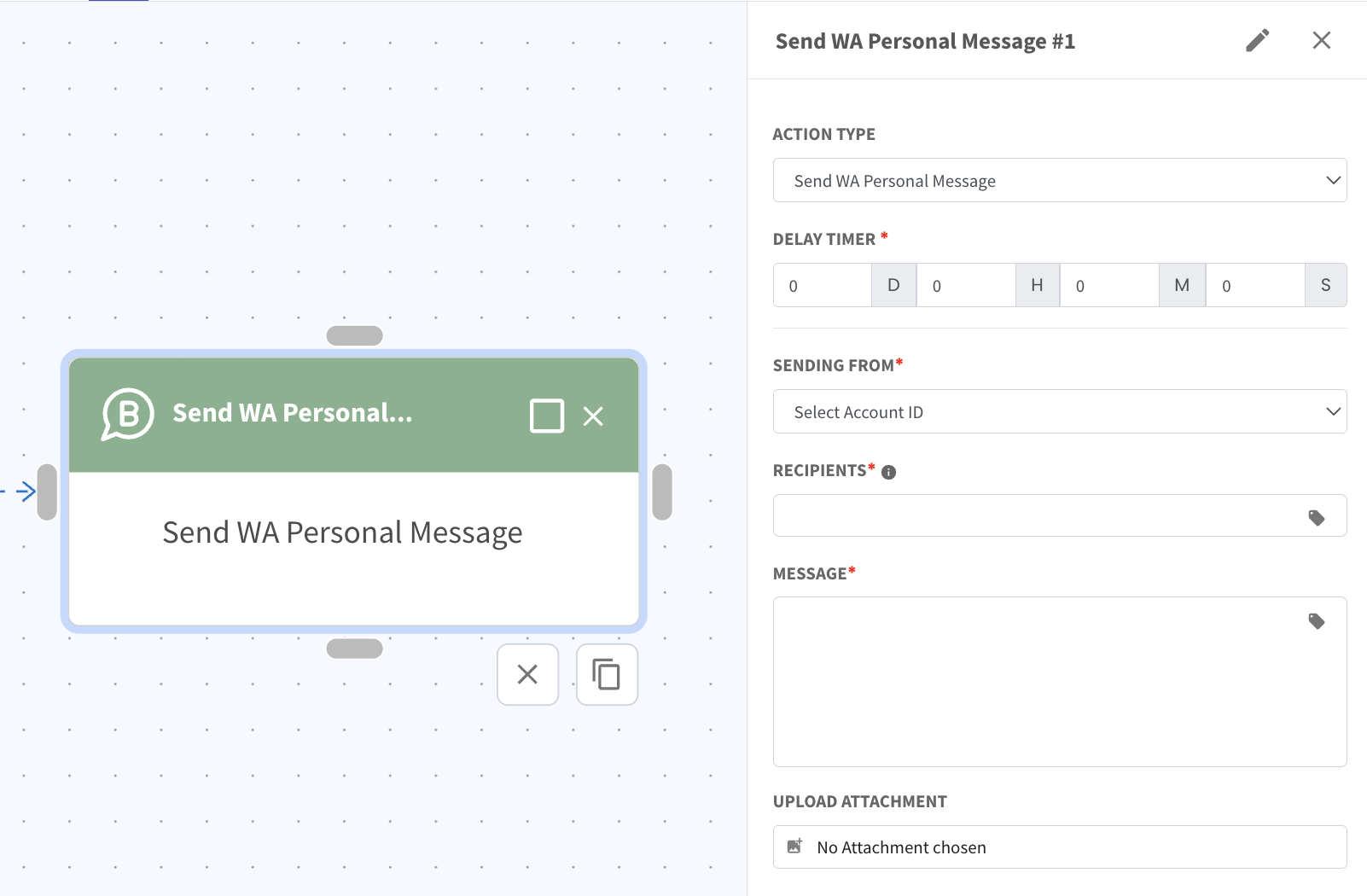
This action allows you to send a WhatsApp message using a connected WA Personal device account.
Unlike WA API Message V2, this message is sent through a WhatsApp Personal (device-based) connection instead of the WhatsApp API. This means the message behaves like a normal WhatsApp message sent from the connected device.
Configuration Fields
Sending From
Select the WhatsApp Personal account (device number) that will send the message.
Recipients
Specify the contact who will receive the message.
You can select a variable such as:
{{default_contact}}
This means the message will be sent to the contact currently going through the workflow.
Message
Enter the message content that will be sent to the contact.
This field is required.
Upload Attachment
You can optionally attach a file or media together with the message.
Example Use Cases
Send personal follow-up messages to leads
Respond to customer inquiries automatically
Send manual sales messages or reminders
Share documents or media attachments with contacts
4. Add Contact List
This action allows you to add a contact into a specific contact list.
Contact lists help organize contacts for segmentation and targeted campaigns.
Example Use Cases
Add users to a campaign list
Segment contacts by response
Build remarketing audiences
5. Add Tagging
This action allows you to add a tag to a contact.
Tags help categorize contacts based on their behaviour, interests, or campaign participation.
⚠️ Important:
You can only add 1 tag per Add Tagging action.
If you need to add multiple tags, you will need to add multiple Add Tagging actions in the workflow.
Example Use Cases
Tag users as Interested Lead
Mark contacts as VIP Customer
6. Remove Tagging
This action removes existing tags from a contact.
This helps maintain accurate contact segmentation.
Example Use Cases
Remove New Lead tag after conversion
Remove Campaign Participant tag when a campaign ends
7. Add WA API Campaign
This action adds a contact to a WhatsApp API campaign mailing list.
Once added, the contact may receive future broadcast messages from that campaign list.
Example Use Cases
Subscribe users to marketing campaigns
Add contacts to product update notifications
8. Add WA Personal Campaign
This action adds a contact to a WhatsApp Personal campaign list.
This campaign type is used for WhatsApp Personal messaging, rather than WhatsApp API messaging.
Example Use Cases
Enrol contact to receive product update
Enrol contact to receive follow up messages
9. Create / Update Contact
This action allows the workflow to create a new contact or update an existing contact's information.
Contact details such as name, phone number, or custom fields can be updated automatically.
Example Use Cases
Create contact for new leads
Update customer information after form submissions/response
10. Create Deal (Sales Module Required)
⚠️ Important:
Deal-related actions are only available if you have access to the Sales module.
If the Sales module is not enabled for your account, these actions will not be usable.
This action creates a new deal in the Pipeline module.
Deals help track sales opportunities and potential revenue through different pipeline stages.
Example Use Cases
Create a deal when a new lead is generated
Automatically track sales inquiries
Convert incoming contacts into sales opportunities
11. Move Deal (Sales Module Required)
This action moves an existing deal to another stage in the sales pipeline.
This helps automate the progression of deals through the sales funnel.
Example Use Cases
Move deal from New Lead → Qualified Lead
Move deal to Proposal Sent
Move deal to Closed Won after a successful sale
12. Log Purchase
This action records a purchase made by the contact.
It helps track customer transactions and purchase history.
Example Use Cases
Record product purchases
Track order history
Monitor customer spending
13. Send HTTP Request
This action allows the workflow to send a request to an external system using an API.
It is commonly used to integrate Strive with third-party platforms or services.
Example Use Cases
Send data to external tool
Connect with custom systems
14. Google Sheet
This action allows the workflow to send data in Google Sheets.
It is useful for logging information or syncing workflow data.
Example Use Cases
Store leads in Google Sheets
Log form submissions
Track responses
15. Unsubscribe From WA API Mailing List
This action changes the subscription status of the contact from a WhatsApp API campaign mailing list.
This helps manage user preferences and prevent unwanted marketing messages.
Example Use Cases
Unsubscribe users from promotions
Manage opt-out requests
16. Wait For Reply
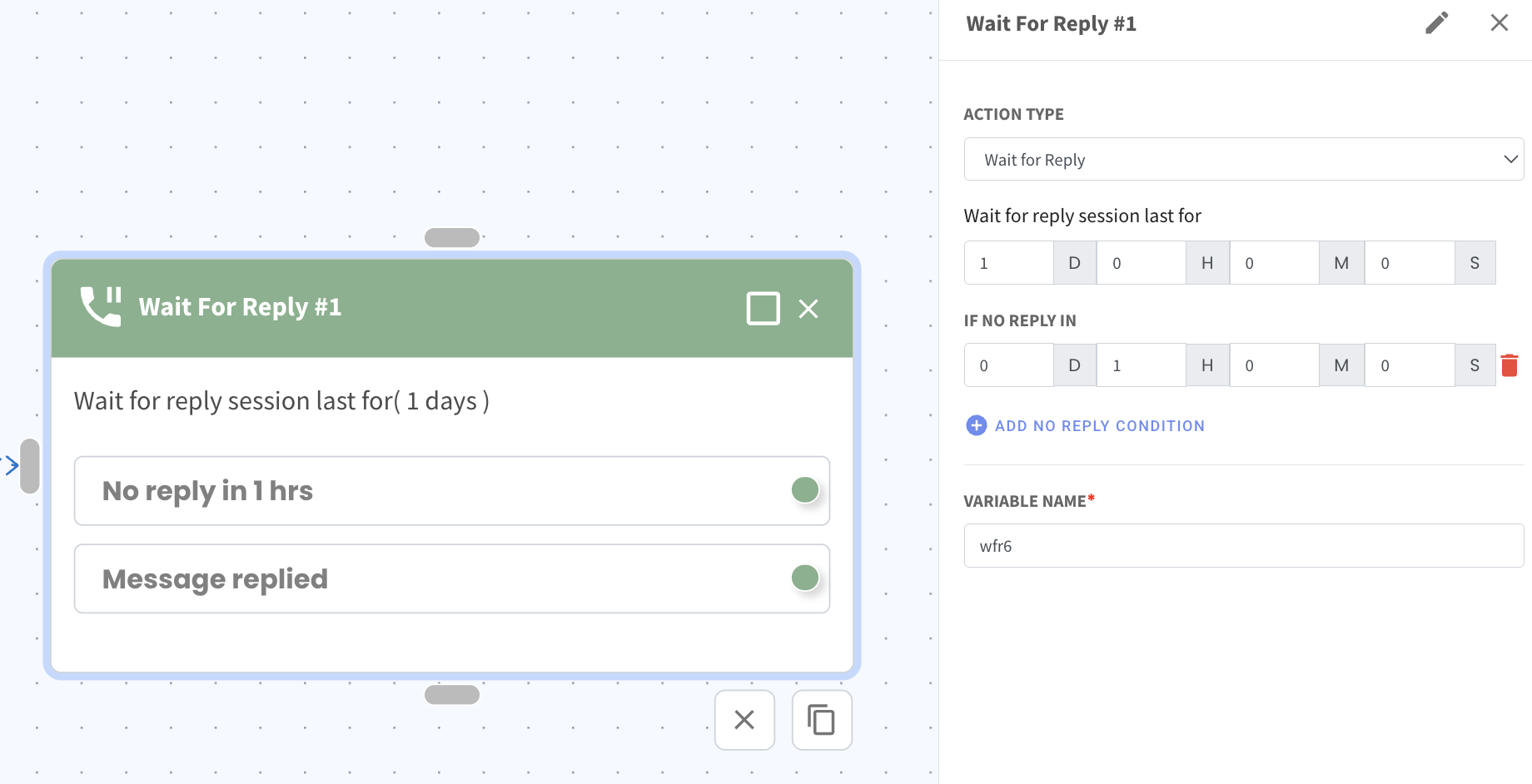
This action pauses the workflow and waits for the contact to reply before continuing to the next step.
During this period, the workflow will monitor the conversation and proceed based on whether the contact replies or does not reply within the specified time.
Configuration Fields
Wait for reply session last for
This defines the maximum duration the system will wait for a reply from the contact.
Example:
If set to 1 day, the system will wait up to 1 day for the contact to respond.
If no reply in
You can define a timeout condition.
If the contact does not reply within this duration, the workflow will proceed through the No Reply path.
Example:
If set to 1 hour, the workflow will move to the No Reply path after 1 hour if the contact has not responded.
You can also add multiple no-reply conditions if different actions are needed at different time intervals.
Variable Name
This field stores the reply result in a variable which can be used later in the workflow for conditions or tracking.
Workflow Paths
The Wait For Reply action provides two possible paths:
Message replied
The workflow continues through this path when the contact sends a reply during the waiting period.
No reply in [time]
The workflow continues through this path when no reply is received within the specified timeout period.
Example Use Cases
Wait for a customer to confirm an appointment
Pause the workflow until the contact responds to a question
Trigger a follow-up message if the contact does not reply
Collect responses before continuing to the next automation step