WA API Broadcast Failed: "Application does not have permission for this action"
When a WA API broadcast fails with "Application does not have permission for this action" in the Detail column of Total Failed, Meta has refused the send because the connection between Strive and your WhatsApp Business account no longer has the permission it needs (Meta error code 10, "permission is either not granted or has been removed"). It is not caused by the message content or the contacts. Common causes: the app Strive uses was removed from Connected apps in your Meta business portfolio, the WhatsApp account or number was moved or its sharing changed, or a permission was removed on Meta's side. Check in Meta Business Suite: Settings > Integrations > Connected apps (the Strive app should be under Connected; do not remove it), Settings > Accounts > WhatsApp accounts (account and number still there), and WhatsApp Manager for any restriction warning. Do not delete or reconnect the number unless Strive support asks. Contact Strive support through our WhatsApp support line with the affected WA API number and the date, time and time zone of the latest failed message (today or yesterday; if older, send a new message first). The recipient number is not needed. Support helps lodge a ticket with Meta; Meta makes the fix. Afterwards, send a test message and resend to those under Failed.
If messages in a WA API broadcast fail with the reason "Application does not have permission for this action", Meta has refused to send them because the connection between Strive and your WhatsApp Business account no longer has permission to send messages for your number. It is not caused by your message content or by the contacts you are sending to.
This guide applies to WA API numbers. It covers how to confirm the error, the common causes, what you can check yourself in Meta Business Suite, and what to send Strive support. Do not delete or disconnect your WhatsApp number in Strive unless Strive support asks you to.
Signs this is the issue
In the broadcast report, contacts under Total Failed show the status FAILED, and the Detail column says "Application does not have permission for this action".
Usually most or all messages from the same number fail with this reason, not just one contact, because the permission applies to the whole connection.
The same reason may also appear on messages sent from that number in the Inbox or in a Flow.
How to see the failed reason
In the broadcast report, double-click the number under the Total Failed column.
Scroll right to the Detail column. Hover over the text to see the full reason.
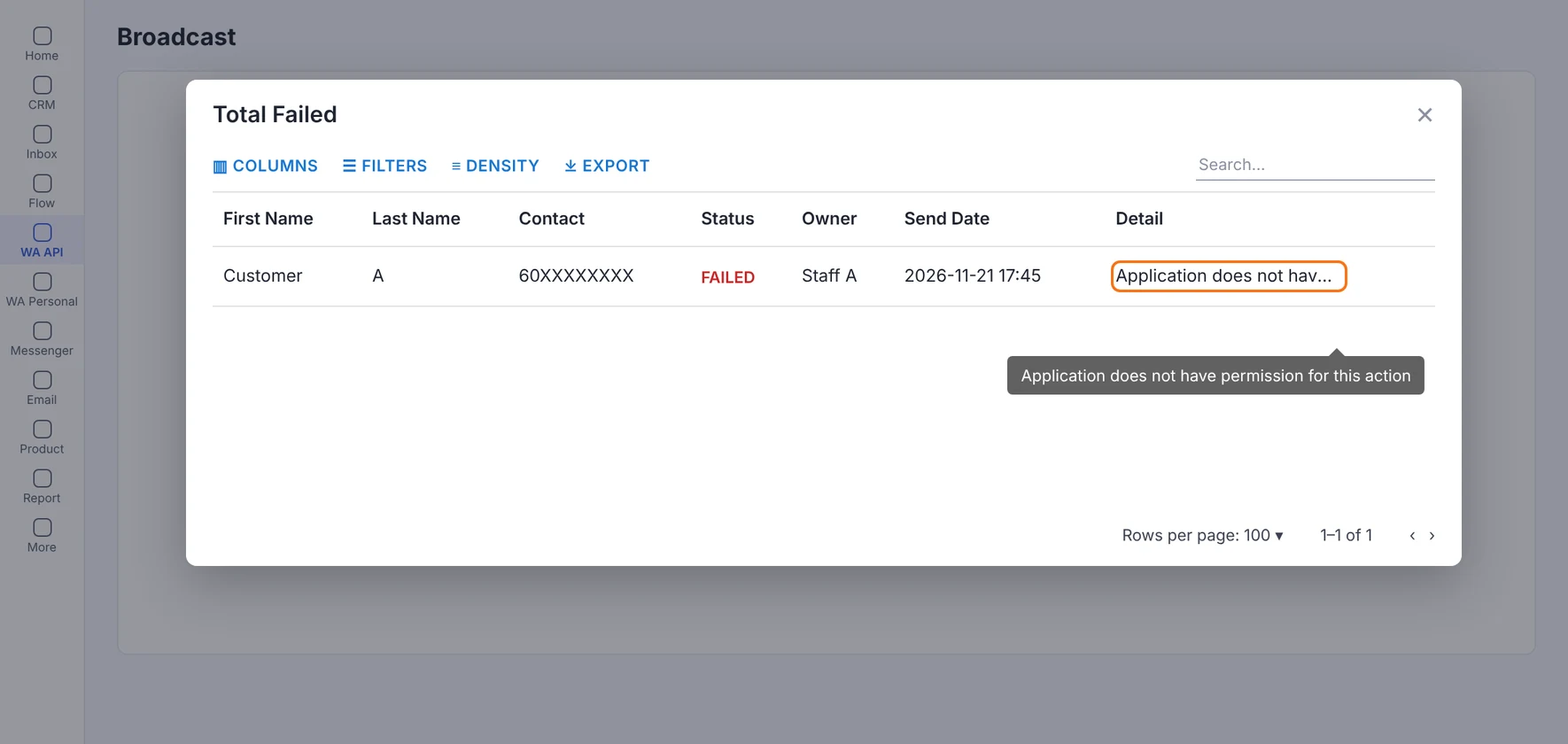
See How to View WA API Broadcast Failed Reason.
What usually causes it
Meta returns this message (error code 10) when a permission needed for the action was never granted or has been removed. For a WA API number connected to Strive, the common causes are:
The Strive connection was removed in your Meta business portfolio. If someone in your business removes the app Strive uses from Connected apps, Meta cancels Strive's access to your WhatsApp Business account straight away.
Access to your WhatsApp Business account changed. For example, the WhatsApp account or number was moved to another business portfolio or WhatsApp Business account, or the assets shared with Strive were changed.
A change on Meta's side removed a permission from the connection. You can't see or fix this yourself, so contact Strive support.
Quick checks you can do in Meta Business Suite
You need full control of the business portfolio that owns your WhatsApp Business account.
Log in to Meta Business Suite and select the business portfolio that owns your WhatsApp number.
Go to Settings > Integrations > Connected apps. Check that the app Strive uses to connect your number is still listed under Connected and not under Removed. Do not remove it.
Go to Settings > Accounts > WhatsApp accounts. Check that your WhatsApp Business account is still in this business portfolio and that your number is still listed in it.
Open WhatsApp Manager and check the account overview for any warning that your account or number is restricted or disabled. If there is one, follow the steps Meta shows there.
Ask the people who manage your business portfolio whether anything changed recently, such as an admin being removed, apps being removed, or the WhatsApp account being moved.
If you find that the Strive app was removed or your number was moved, contact Strive support before you change anything. Don't try to connect the number again on your own unless support asks you to.
When to contact Strive support
If the checks above look fine, or you found a problem you can't fix, contact Strive support through our WhatsApp support line. Send these details:
Your affected WA API number, with country code.
The date, time and time zone of the latest failed message. Ideally this is from today or yesterday. If the failure was more than 1 day ago, send a new message from that number first, then tell support the result.
The failed reason from the Detail column: "Application does not have permission for this action".
You don't need to send the recipient's phone number.
Strive support will help you lodge a ticket with Meta. The fix itself is made by Meta, so Strive can't control how long Meta takes to resolve it.
After the issue is fixed
Send a test message from the affected number to make sure it delivers.
Resend the broadcast to the contacts who did not receive it. See How to Resend WA API Broadcast to Those Under Failed.
Common questions
Is my number banned? Not necessarily. This message is about permission for the connection. A ban or restriction on your account usually shows a different reason. Check WhatsApp Manager for any warning.
Will resending fix it? No. Resending gives the same result until the permission is fixed.
Do my contacts need to do anything? No. The problem is on the sending side, not with your contacts.
Can I remove the Strive app and connect it again myself? Please don't, unless Strive support asks you to. Removing the app stops all WA API messages from your number until it is connected again.