What Does "Oops, Your account has expired!" Mean?
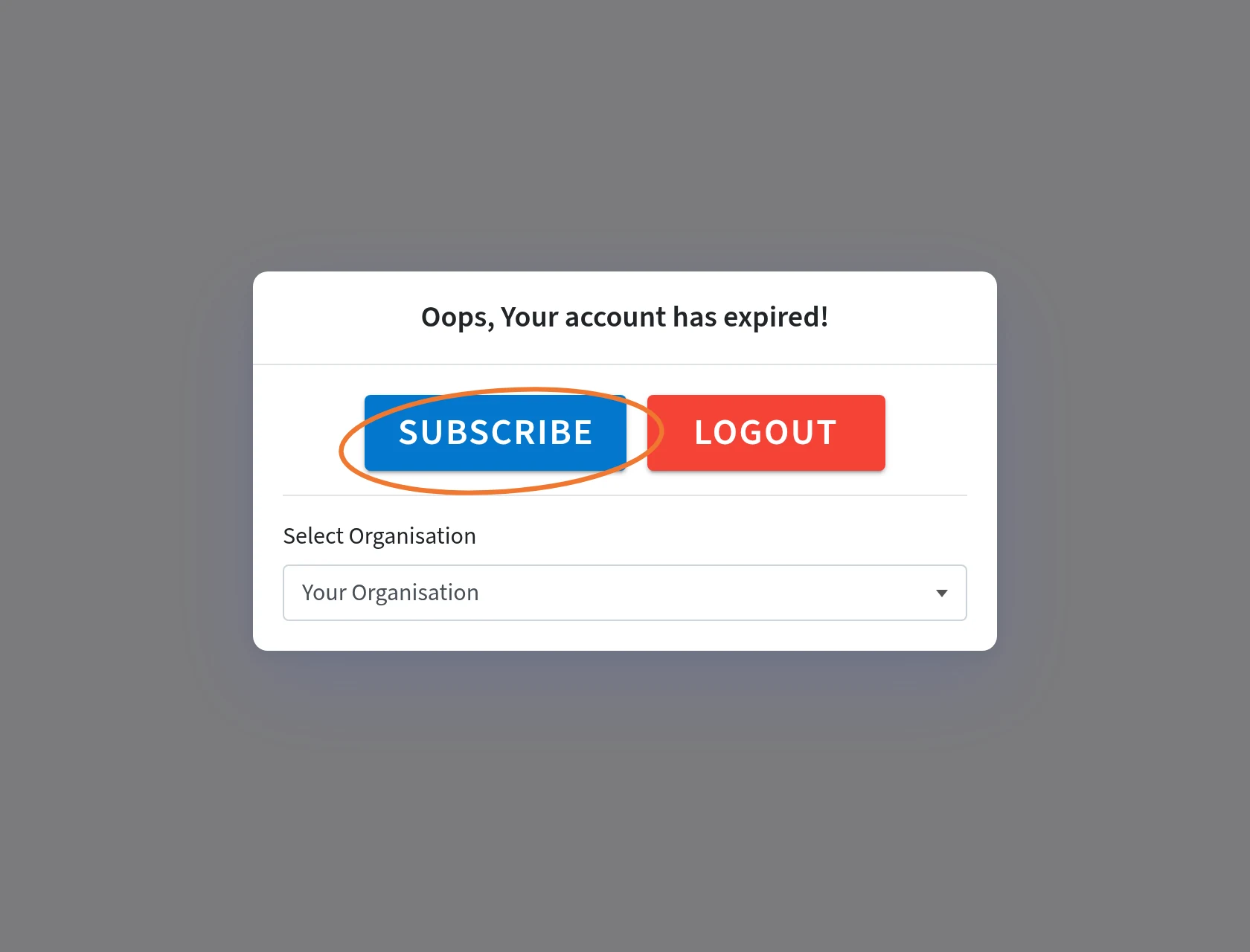
The organisation you selected is no longer active. This usually happens when a payment fails, and can also happen when a free trial or a paid subscription has ended. If you are the organisation owner, click SUBSCRIBE to open the subscription page and proceed to checkout; check your payment method and subscribe again. If you are not the owner, ask your organisation owner to renew. Click LOGOUT to sign out. If you belong to more than one organisation, use Select Organisation to switch to one that is still active. If you've already paid but still see the message, contact Strive support through our WhatsApp support line.
Short answer: the organisation you selected is no longer active. This usually happens when a payment fails. It can also happen when a free trial or a paid subscription has ended. You can't use that organisation in Strive until the organisation owner chooses a plan.
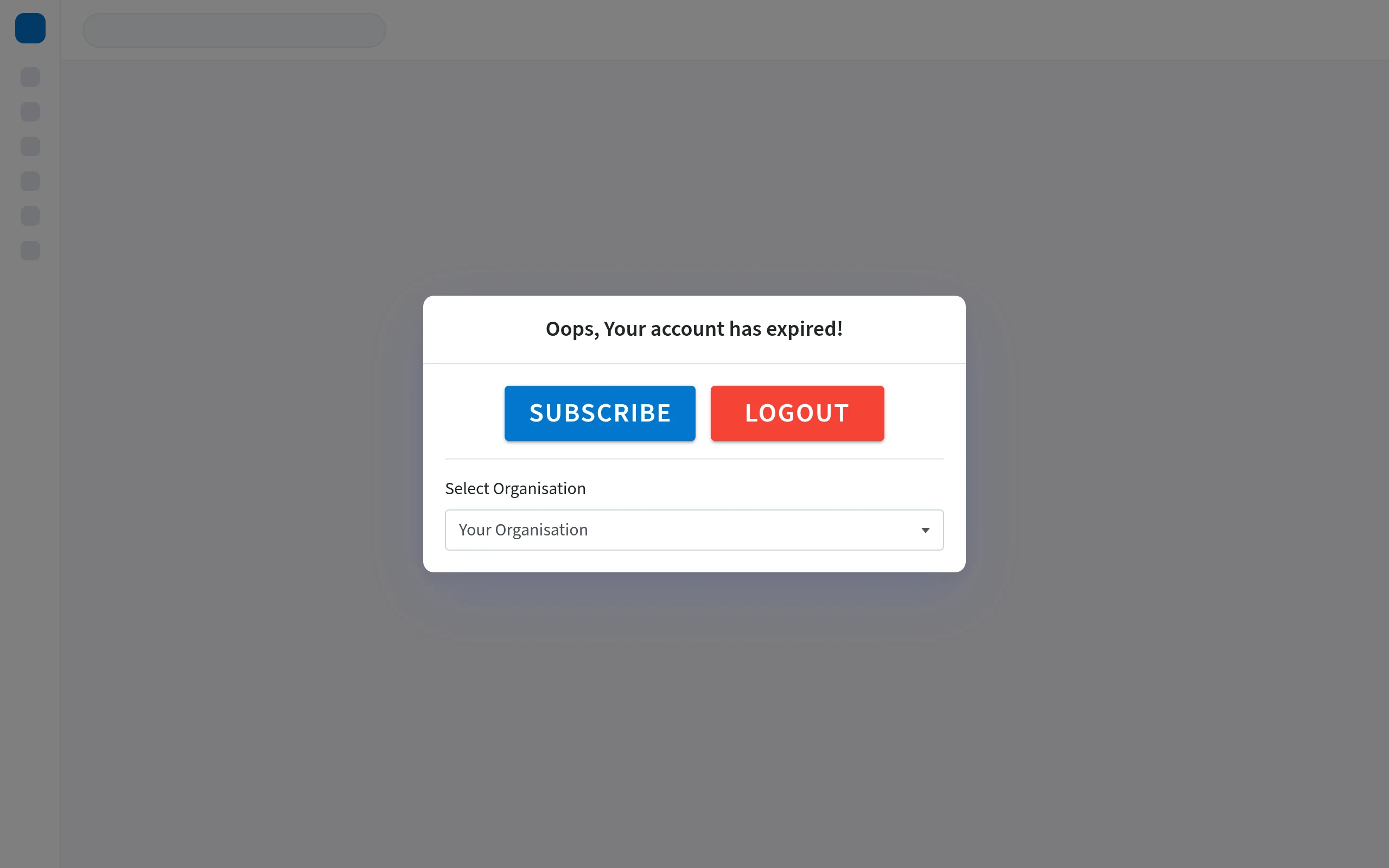
After you log in, you'll see a screen with the message Oops, Your account has expired!, two buttons (SUBSCRIBE and LOGOUT), and a Select Organisation dropdown.
Why does this happen?
Usually, a payment for the organisation's plan has failed.
It can also happen when a free trial has ended, or when a paid subscription has ended.
If you are the organisation owner, check the payment method and subscribe again.
What to do
If you are the organisation owner, click SUBSCRIBE. This opens the subscription page, where you can proceed to checkout. Check your payment method, then complete the payment to continue with this organisation.
If you are not the organisation owner, you can't click SUBSCRIBE. Ask your organisation owner to renew the plan.
If you want to sign out instead, click LOGOUT.
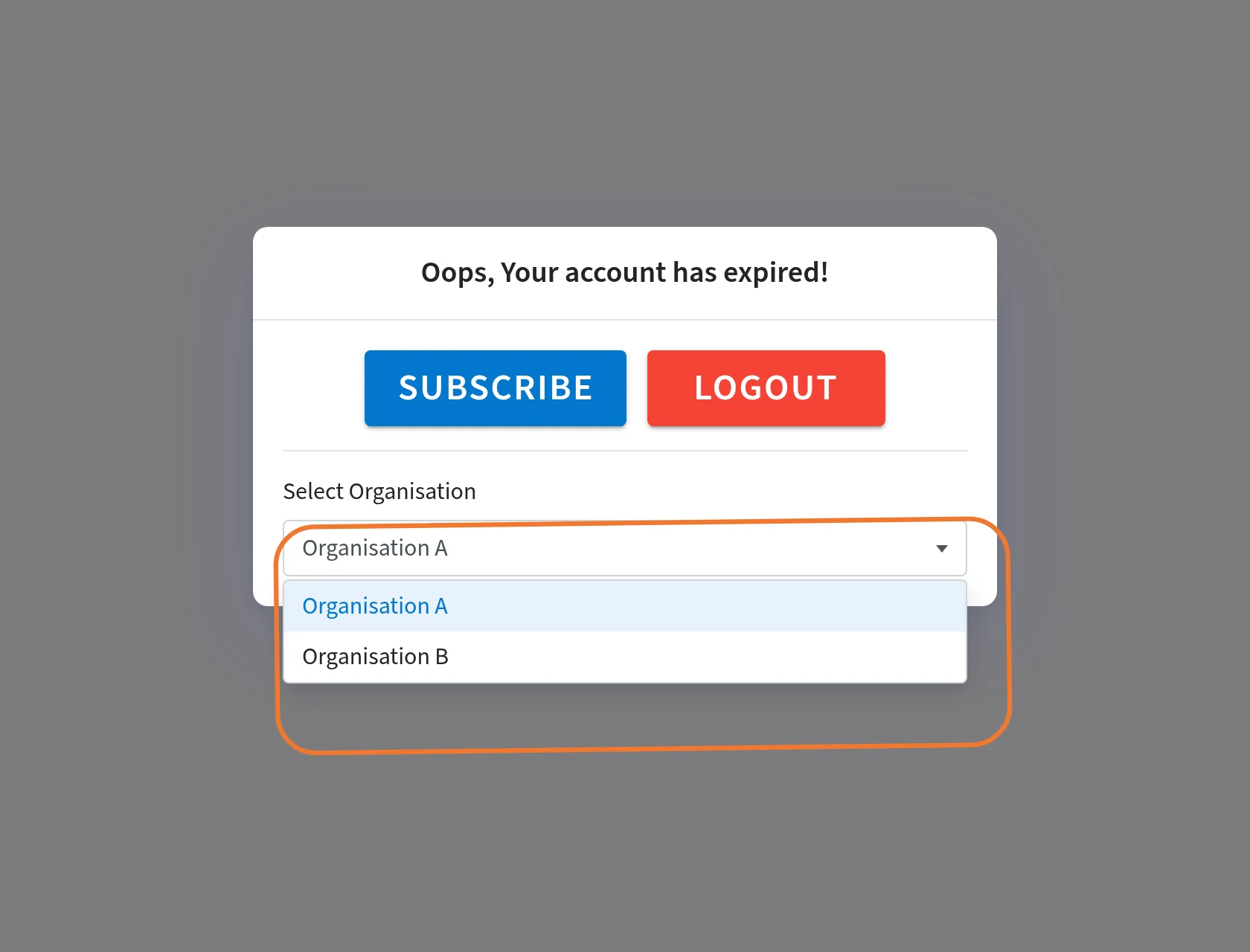
If you belong to more than one organisation, open Select Organisation and switch to an organisation that is still active. You can then continue in that organisation.
If you've already paid
If you've already paid or renewed but still see this message, contact Strive support through our WhatsApp support line. Send the organisation name and the approximate time you completed payment, so Strive support can check the account for you.