How to Connect WA Coexistence
In Strive, go to Inbox > Chat Channels > Connect Now under WA Coexistence, enter your WhatsApp Business number with its country code and click CONTINUE. Finish in Meta's window, then confirm in the WhatsApp Business App with the code shown. You keep using the app; add a payment method in Meta Business Suite before Strive sends paid messages.
WhatsApp Coexistence (Coex) lets you connect the number you already use on the WhatsApp Business App to Strive. You keep using the app on your phone, and you can also reply to the same chats from the Strive Inbox.
Before you start
Your number must already be on the WhatsApp Business App (not regular WhatsApp), logged in on your main phone. Keep the phone with you.
Update the WhatsApp Business App to the latest version (2.24.17 or later).
Anyone in your Strive organisation can connect a WhatsApp channel. You don't need a special Strive role.
Log in with a Facebook account that has access to your Meta Business Suite. A Meta Business Suite admin is best, because an admin can also add a payment method.
Choose your existing business portfolio rather than creating a new one, so billing and your other Meta assets stay in one place.
You don't need a Facebook Page. If the number is linked to a Facebook Page, remove it from the Page first (see Common problems).
If the number is already connected to another platform, disconnect it first: in the WhatsApp Business App, go to Settings > Account > Business Platform and tap Disconnect Account. Wait 15 minutes, then start below.
1. Start the connection in Strive
Go to Inbox in Strive.
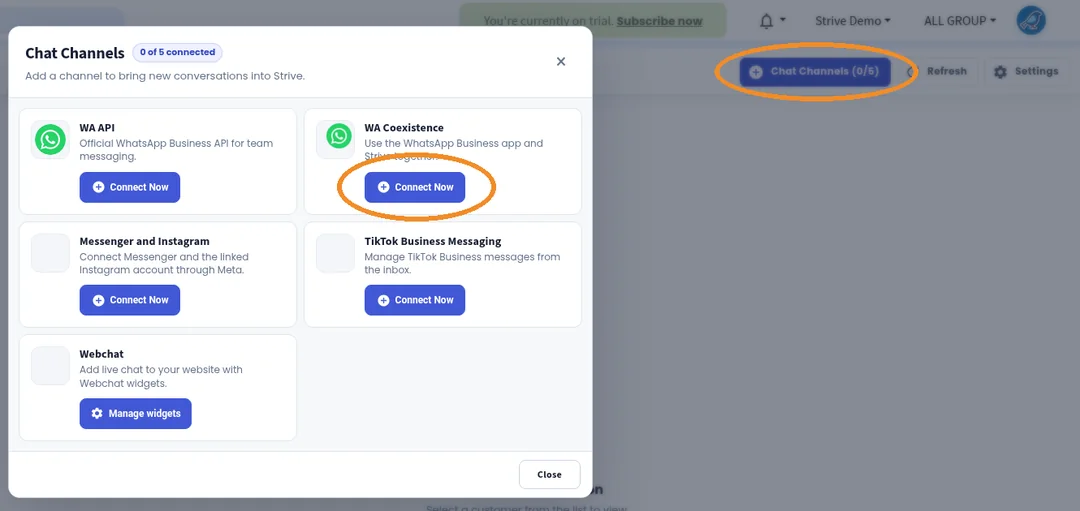
Click the Chat Channels button at the top right. It shows how many channels are connected, for example 0/5.
In the Chat Channels window, click Connect Now under WA Coexistence.
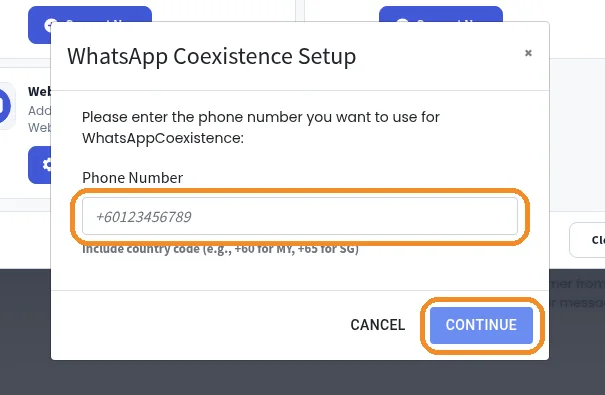
In WhatsApp Coexistence Setup, type your WhatsApp Business number in Phone Number with the country code (for example +60123456789 for Malaysia or +65 for Singapore), then click CONTINUE. Strive uses this number to match the connection to the right WhatsApp number. A Meta window opens.
2. Log in to Facebook and choose your business portfolio
Meta's screens show the app name Strive by 2Kinjo Sdn Bhd. That's Strive, so it's safe to continue. Meta's screens can come in a slightly different order. Follow the ones you see.
Click Continue, or click Log in to another account and log in with the Facebook account that has access to your Meta Business Suite.
Click Get Started.
Click Choose a business portfolio, select your existing business portfolio, then click Next.
3. Confirm your number in Meta
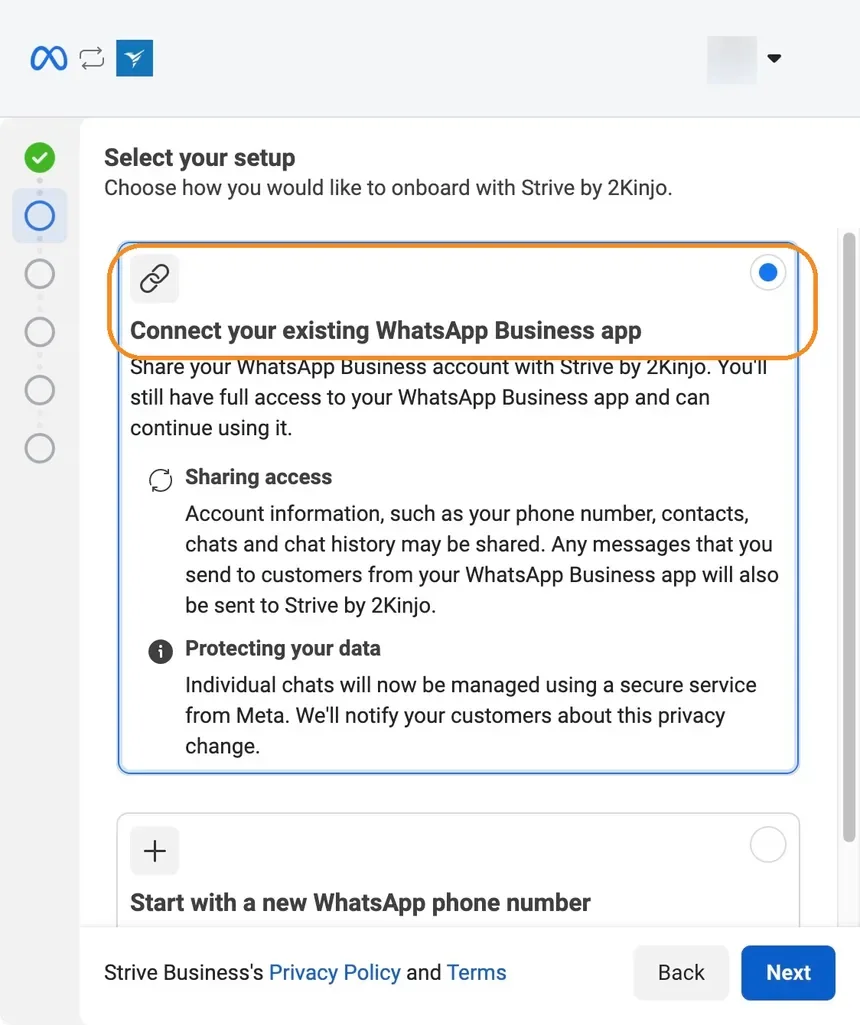
If you see Select your setup, select Connect your existing WhatsApp Business app, then click Next.
If Meta asks for your Phone number, check that it's the number you entered in Strive, with the right country code (for example MY +60). Then click Next.
Meta shows a code and the steps to follow. Keep this window open on your computer.
4. Confirm on your phone
Open the WhatsApp Business App on your phone. Open the message from the official Facebook Business account and tap Connect.
Tap Connect to the Business Platform, then tap Confirm.
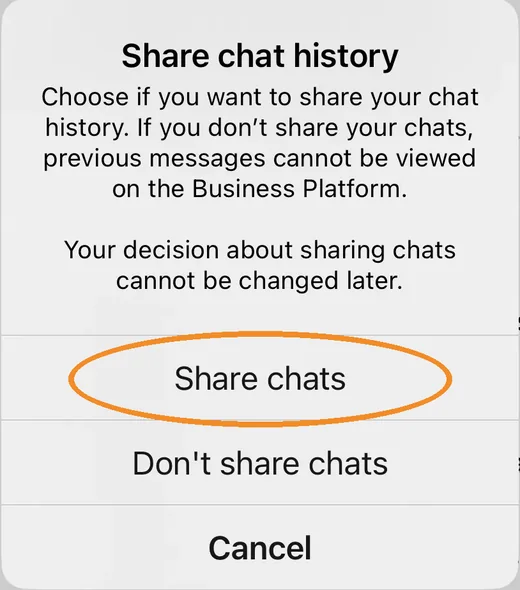
Choose Share chats (recommended) or Don't share chats. To change this later, you'd have to disconnect and connect again.
Enter the code shown on your computer screen. Or tap Scan QR code instead and scan the QR code on your computer.
5. Finish the connection
Wait while it connects. This can take several minutes. Keep the WhatsApp Business App open.
When you see Add Payment and Complete, click Complete. You can add a payment method later, but you need one before Strive can send paid messages (see What you pay Meta for).
What success looks like
After you click Complete, your number is connected to Strive through Coexistence.
You keep using the WhatsApp Business App on your phone. Messages you send from the app also show in Strive.
If you chose Share chats, up to 6 months of 1-to-1 chat history is shared (media from the last 14 days only). Your WhatsApp contacts are synced too.
Your 1-to-1 chats are now managed using a secure service from Meta, and WhatsApp notes this change in the chat.
What changes in the WhatsApp Business App
Broadcast lists are turned off, and existing lists become read-only. Send broadcasts from Strive instead.
Disappearing messages, View once and Live location are turned off for 1-to-1 chats.
Linked devices are logged out. You can link up to 4 again. WhatsApp for Windows and Wear OS aren't supported, so use WhatsApp Web on a computer.
Group chats stay in the app and don't show in Strive.
What you pay Meta for
Messages you send from the WhatsApp Business App stay free.
Messages sent from Strive are charged by Meta: template messages, and (since 1 Oct 2026) replies beyond the first 1,000 per number each month.
Add a payment method in Meta Business Suite > Settings > Billing & payments > Messaging accounts > Add payment method (Visa or Mastercard). Without one, Strive can't send paid messages.
Keep the connection working
Open the WhatsApp Business App on your main phone at least once every 14 days. If you don't, Meta disconnects the number. Open each linked device at least once every 30 days too.
Don't sign out of or reinstall the app, or move the number to regular WhatsApp. These disconnect Coexistence. If you move to a new phone, keep the option to reconnect your business platform ticked when you register.
Don't scan the number into WA Personal in Strive. WA Personal and Coexistence can't be used together, and doing this may get the number restricted by Meta.
To disconnect Coexistence, go to Settings > Account > Business Platform in the WhatsApp Business App and tap Disconnect Account.
Common problems and fixes
“Your phone number isn't eligible to connect to the WhatsApp Business Platform. More activity on the WhatsApp Business App is needed to help determine eligibility.” Meta decides eligibility, and Strive can't change it. It usually means the number is new, has no two-way chats yet, or was recently restricted. Keep using the number normally and try again later, or use WA API or WA Personal instead.
“This number is registered to an existing WhatsApp account. To use this number, disconnect it from the existing account. Then, return to this page and re-enter the number.” Check that you chose Connect your existing WhatsApp Business app, not a new number. If the number is in another business portfolio, remove it there, wait up to 3 minutes and try again. See Connecting Coex Error - Already Registered.
“The phone number is already linked to a Facebook Page.” Remove the Page in Meta Business Suite > Settings > Accounts > Pages, then try again.
“Your phone number isn't registered with WhatsApp Business.” Make sure the number is registered and logged in on the WhatsApp Business App (not regular WhatsApp).
“Please disconnect your business platform to continue.” The number is connected to another platform. In the app, go to Settings > Account > Business Platform, tap the connected platform and Disconnect Account. Wait 15 minutes, then try again.
“Update your WhatsApp Business App to the latest version to use this phone number.” Update the app (2.24.17 or later), then start again from Strive.
“This feature is unavailable for phone numbers from this region.” Meta doesn't support Coexistence for this number's country. Use WA API or WA Personal instead.
“Phone Number has been blocked.” Check the alert in WhatsApp Manager or Business Support Home, and request a review if one is offered. Otherwise, connect a different number.